
Step 1
Go to Integrations → AI assistants. Under “What’s ready” you see whether the free MCP Adapter plugin is on. If it isn’t, install it there first.
Step 2
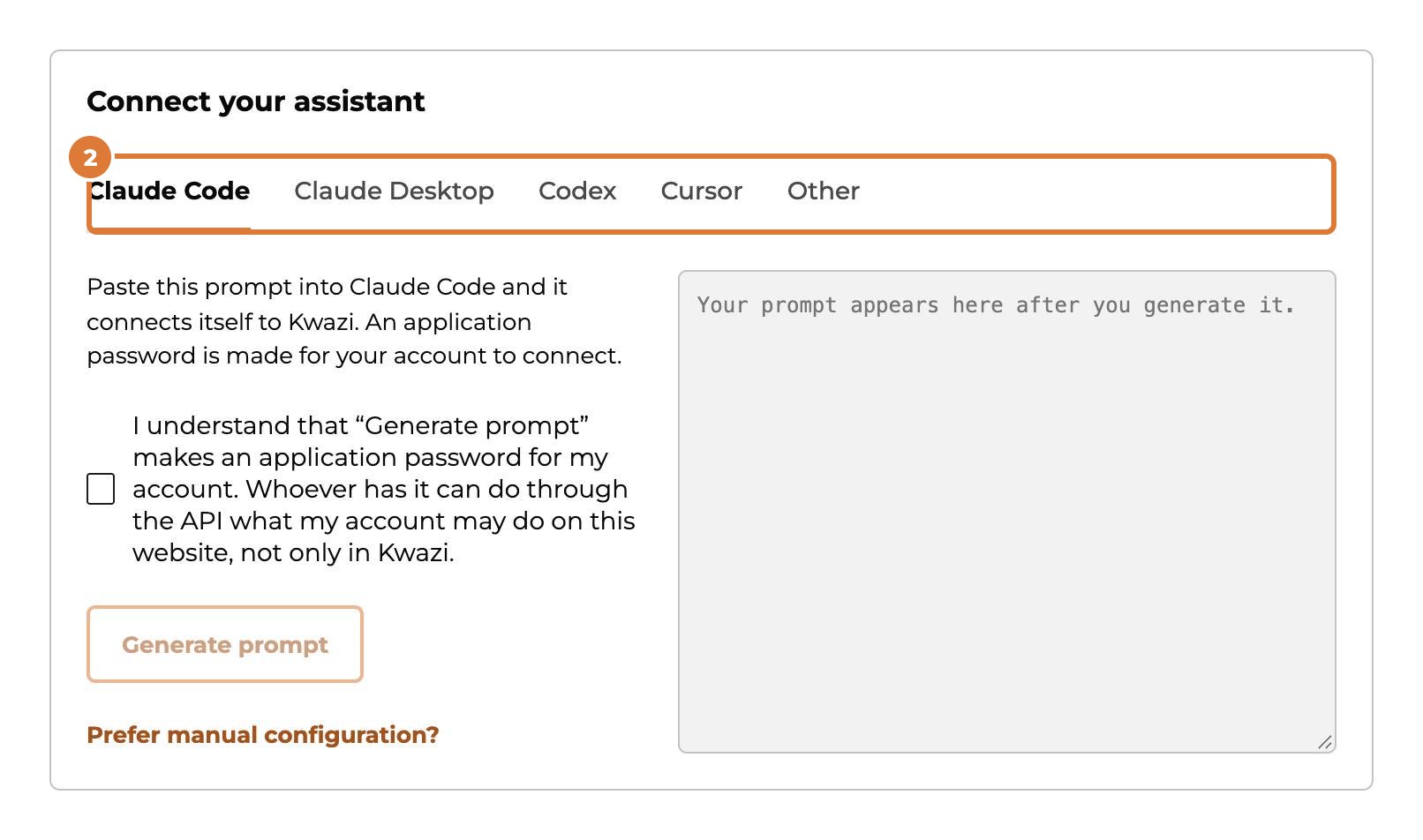
Under “Connect your assistant”, choose your program: Claude Code, Claude Desktop, Codex, Cursor, or Other.
Step 3
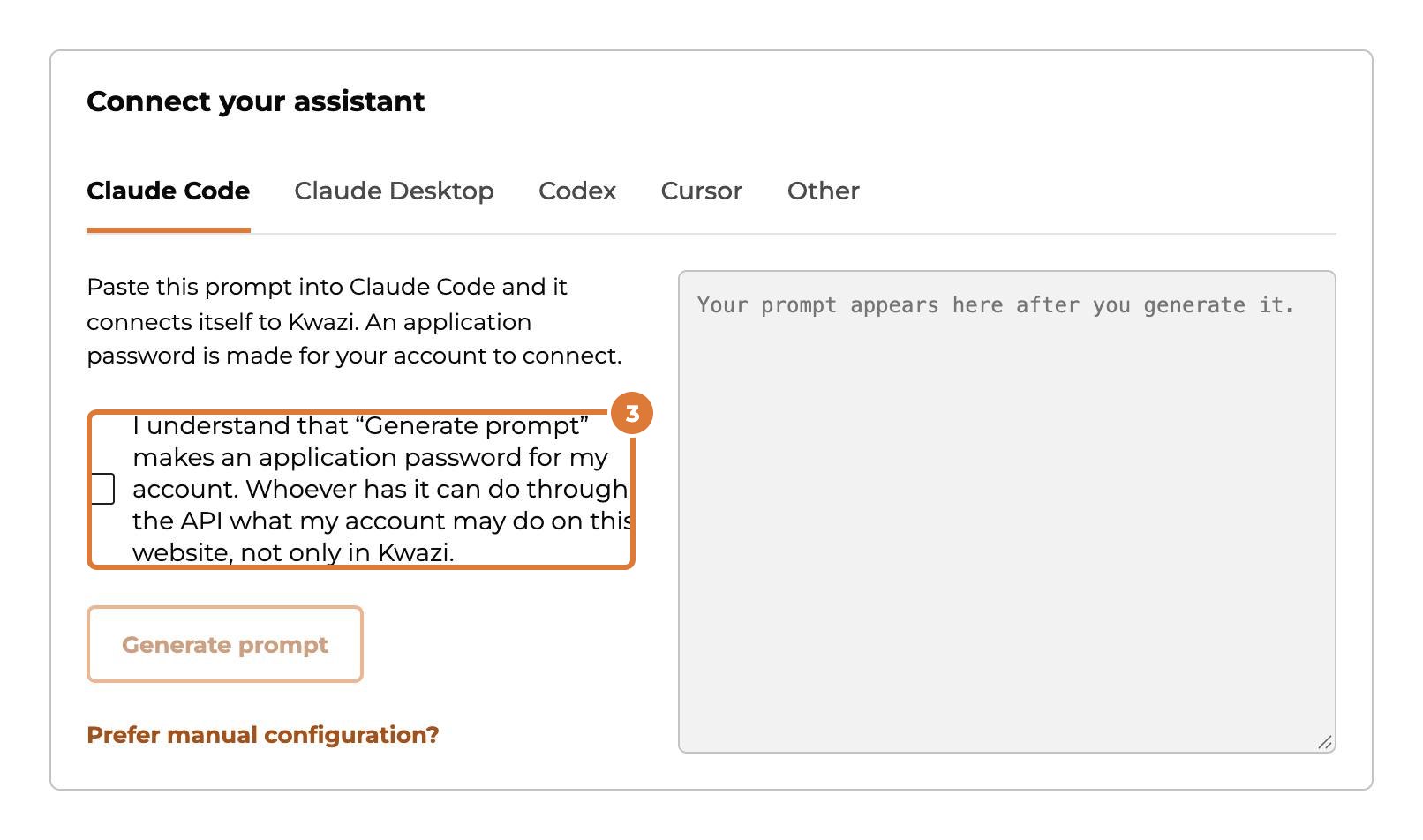
Tick that you understand an application password is made for your account. It works for your whole account through the WordPress API, not only in Kwazi: connect with an account that has only the rights the assistant needs.
Step 4
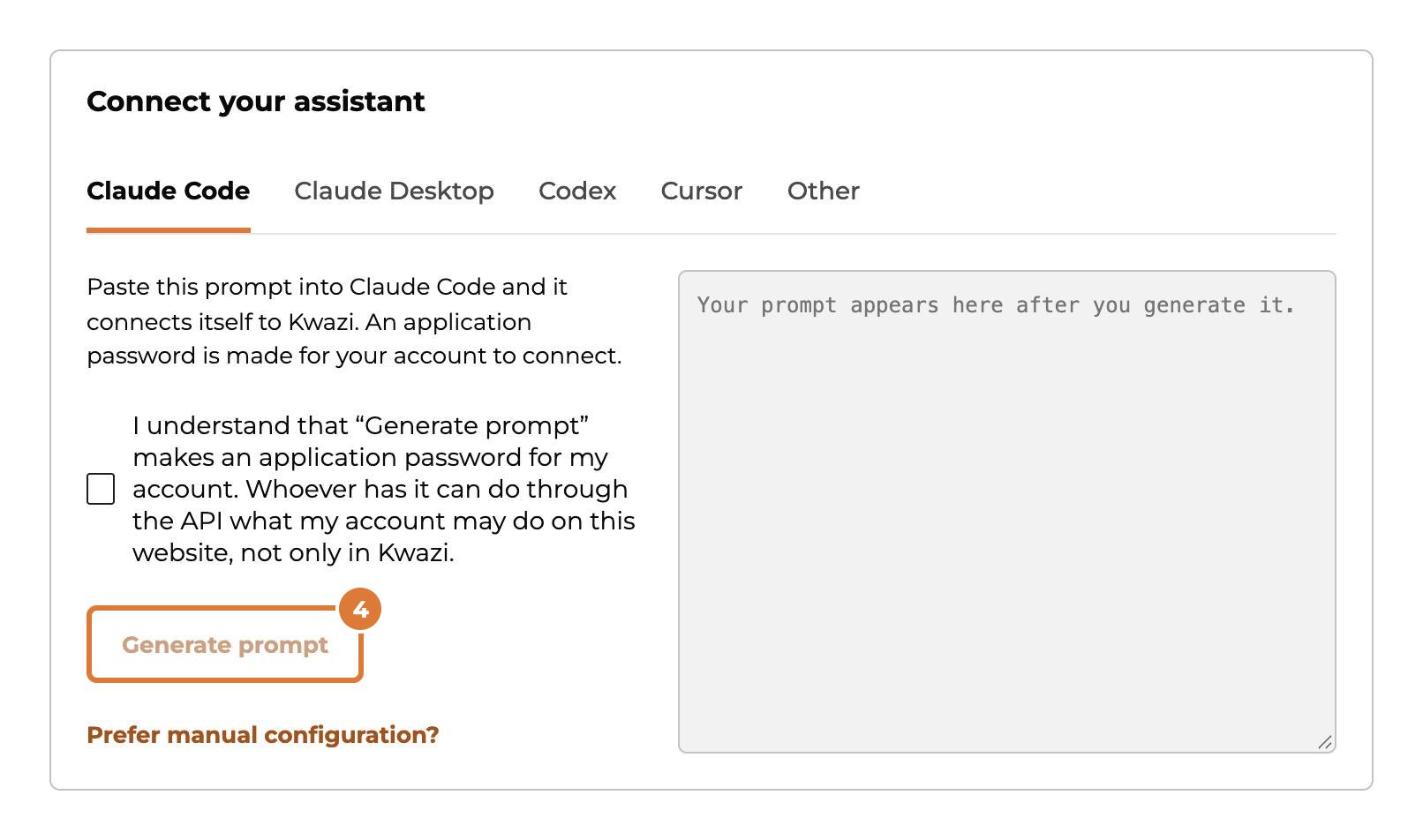
Choose “Generate prompt”.
Step 5
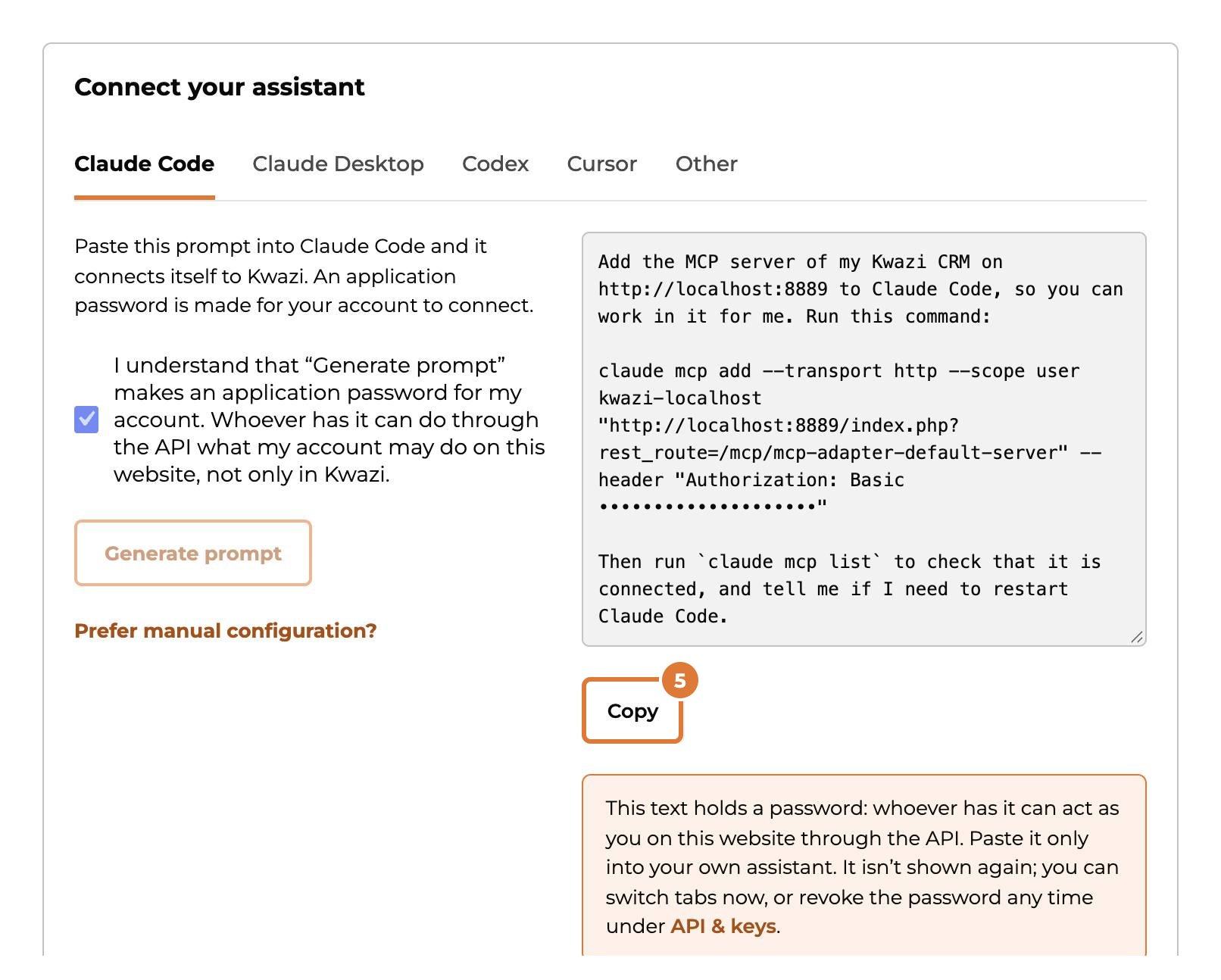
Choose “Copy” and paste the text into your assistant. Claude Code, Codex and Cursor then set up the connection themselves. For Claude Desktop, the text says which settings file to paste it in.
Step 6
Try it: ask something like “Which contacts haven’t booked anything in the last 6 months?”
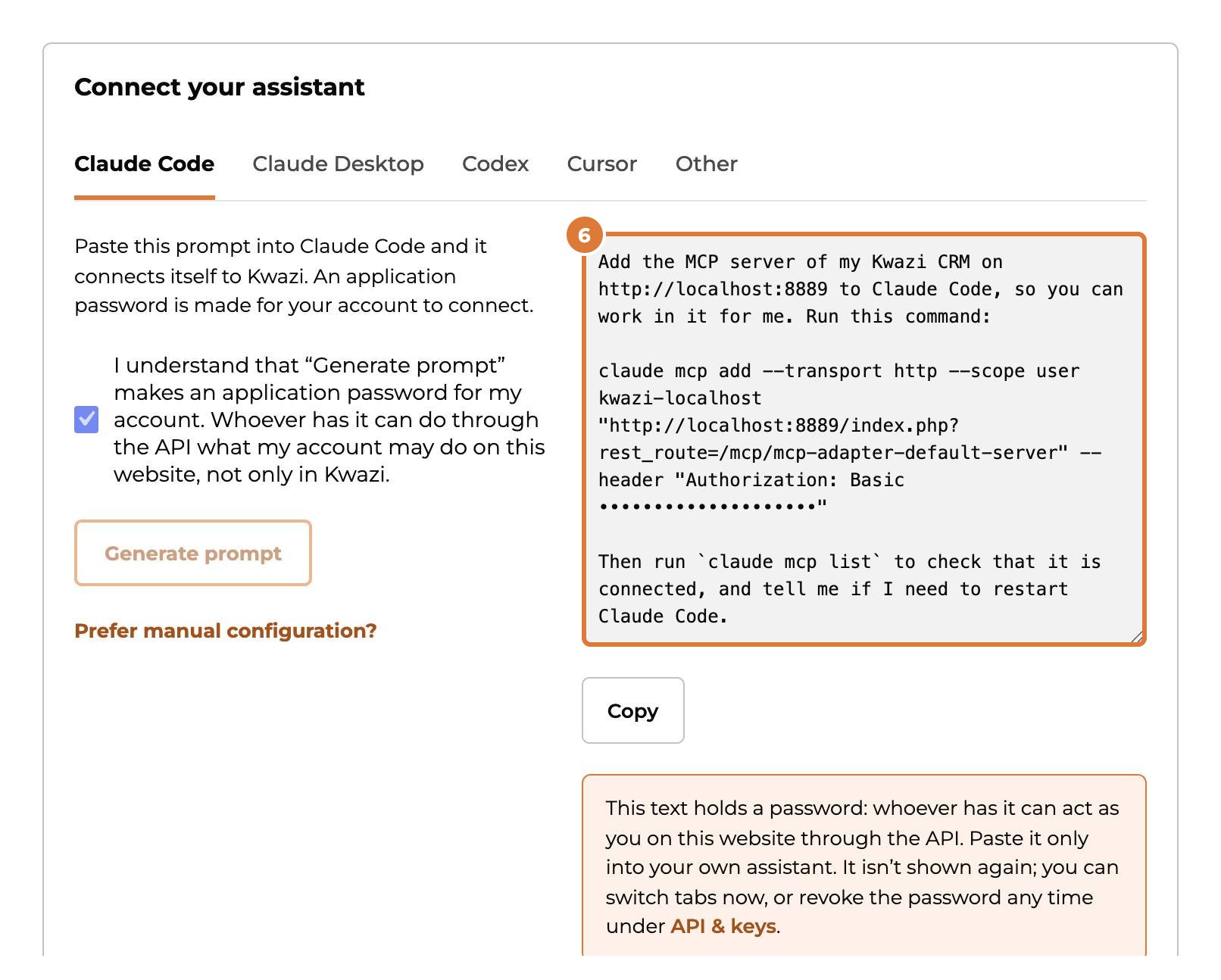
Tip: The text holds a password: paste it only into your own assistant. Stop a connection any time by revoking its application password under API & keys.