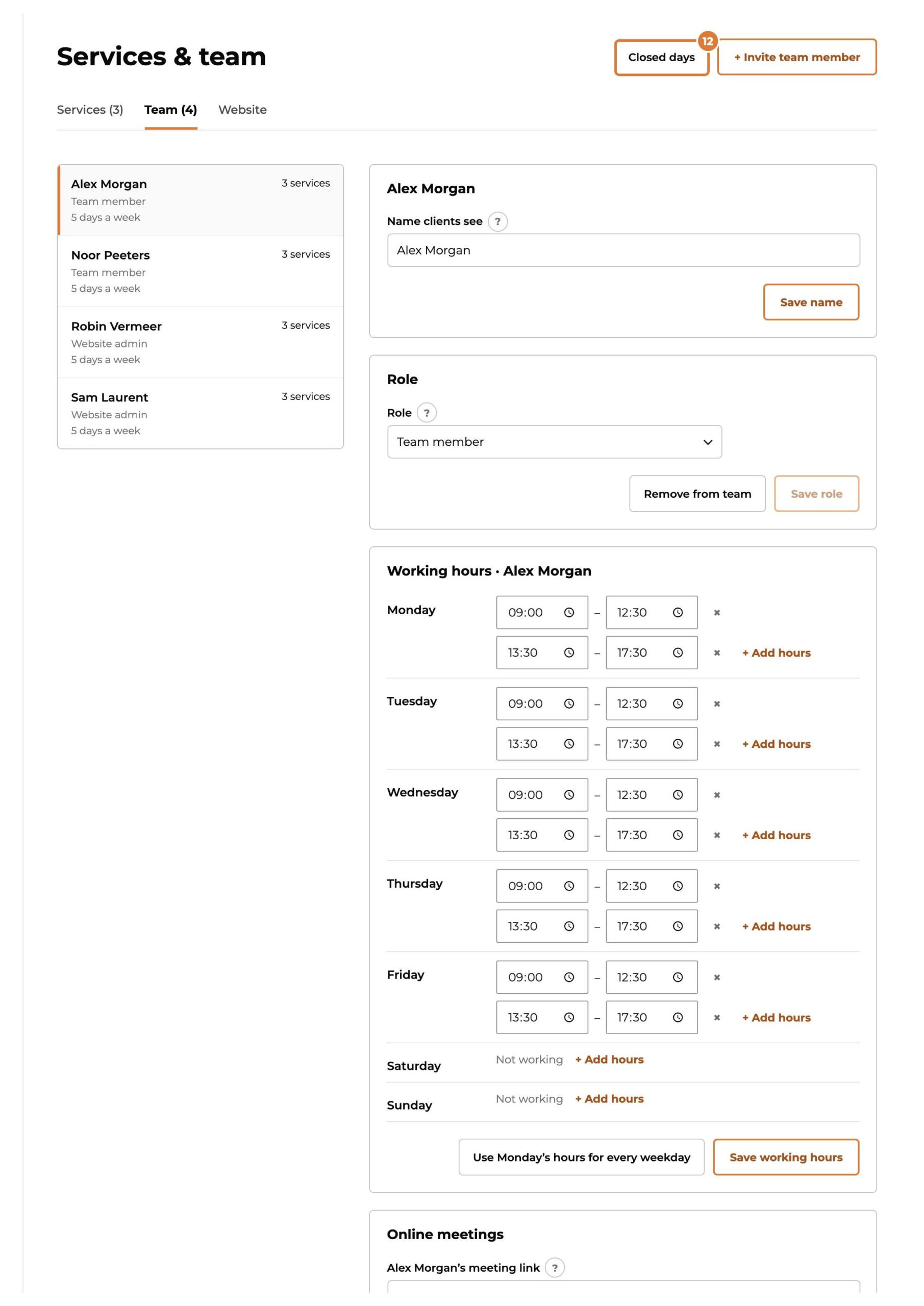
Step 1
Go to Services & team and choose “+ New service”.
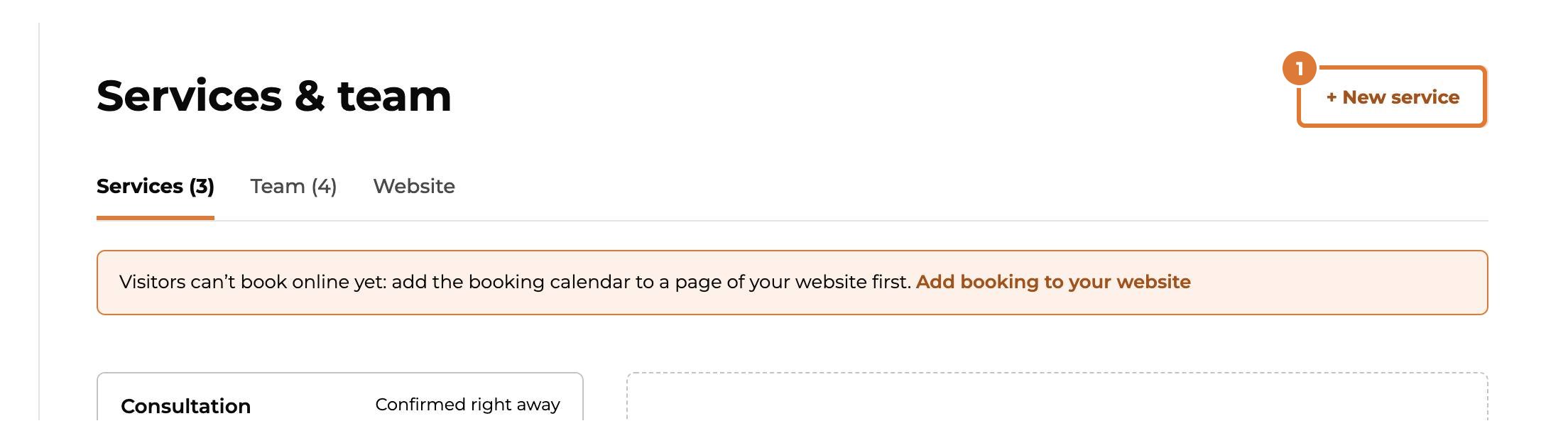
Step 2
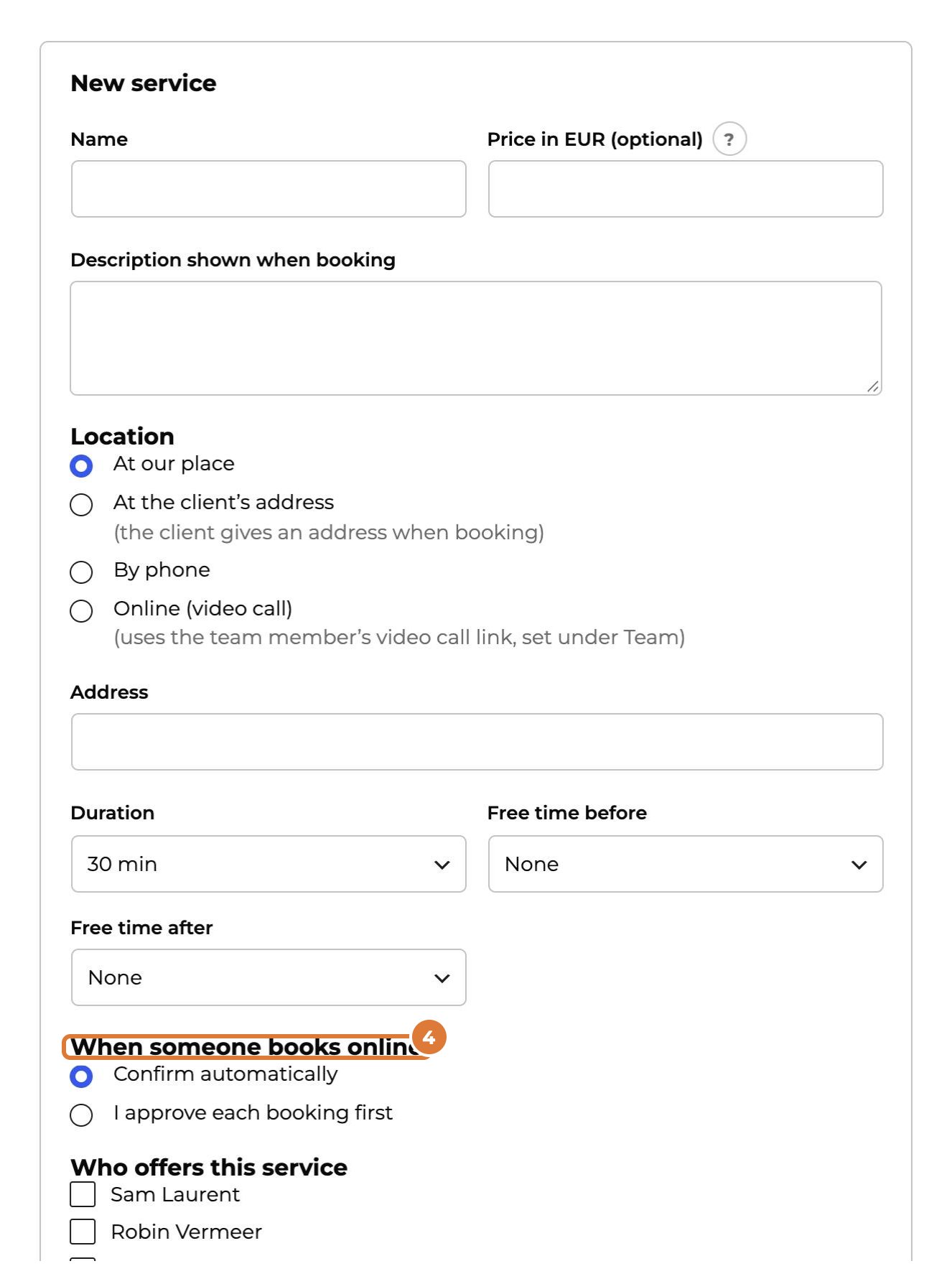
Give it a name and, if you like, a price and a description: clients see them when they book. Kwazi doesn’t take payments; the price is only shown.
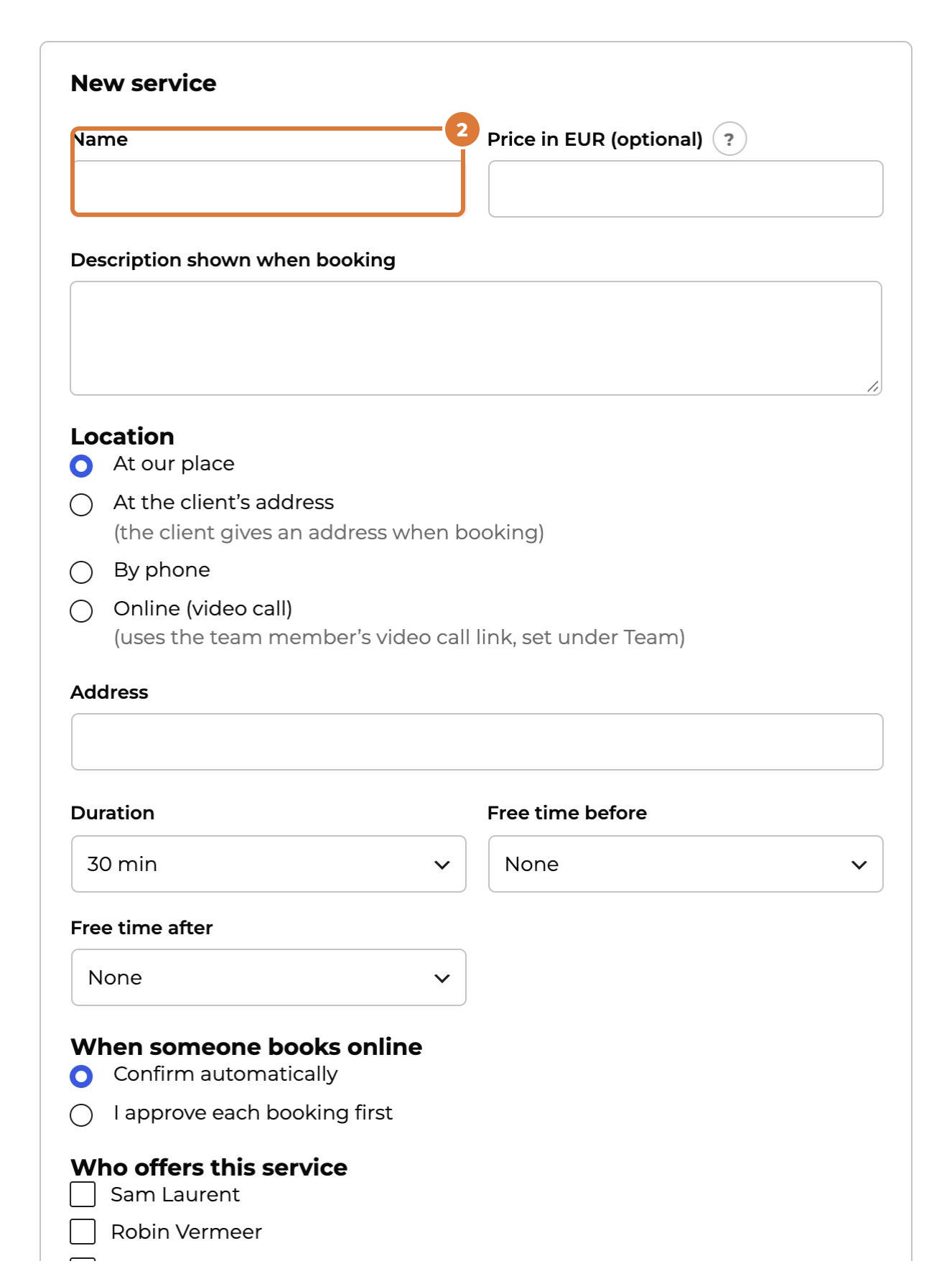
Step 3
Choose the location and how long it takes. Need time between appointments to tidy up or travel? Add free time before or after.
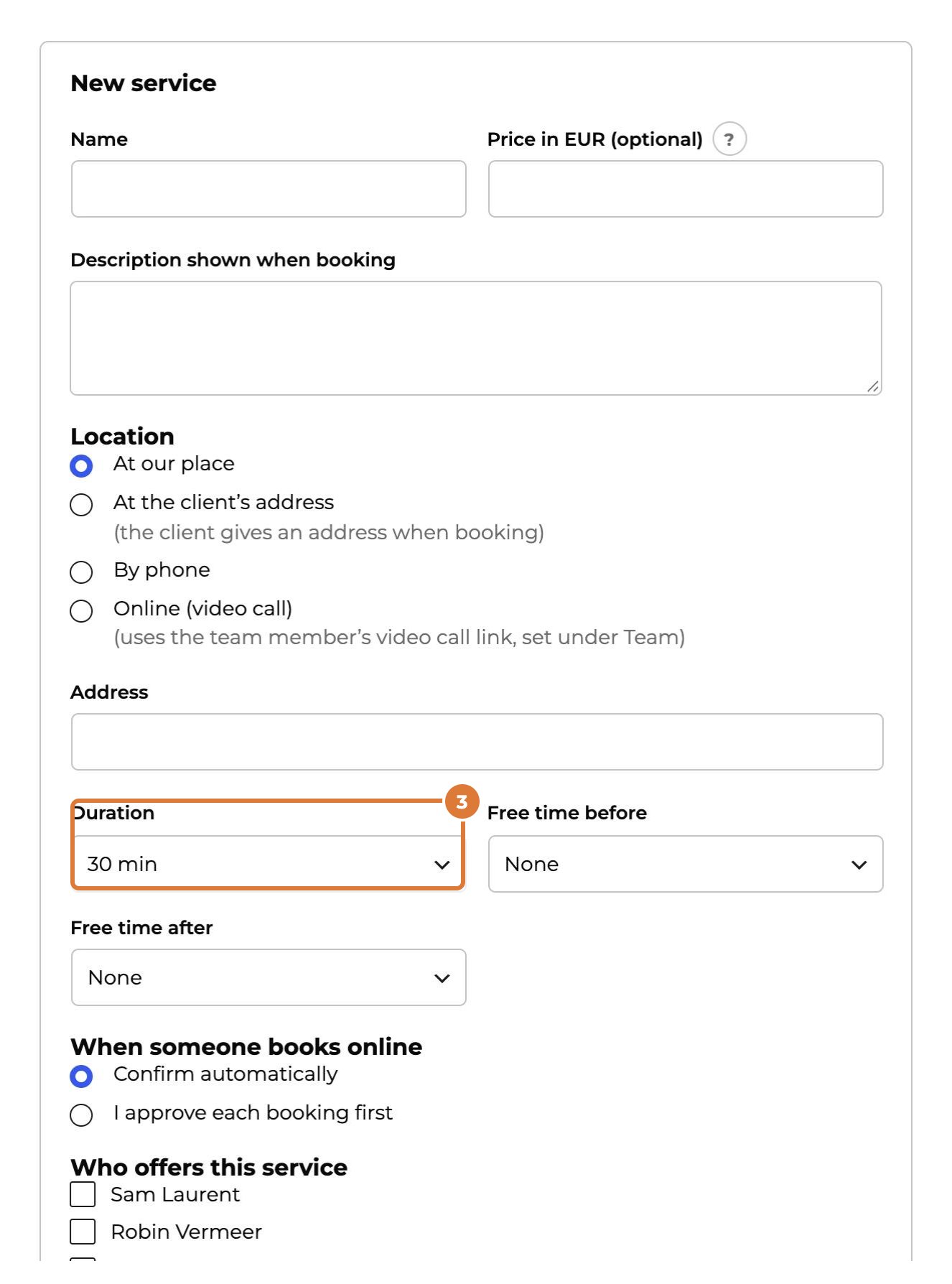
Step 4
Choose whether online bookings are confirmed right away, or whether you approve each one first. Approving first means the client waits for your answer.
Step 5
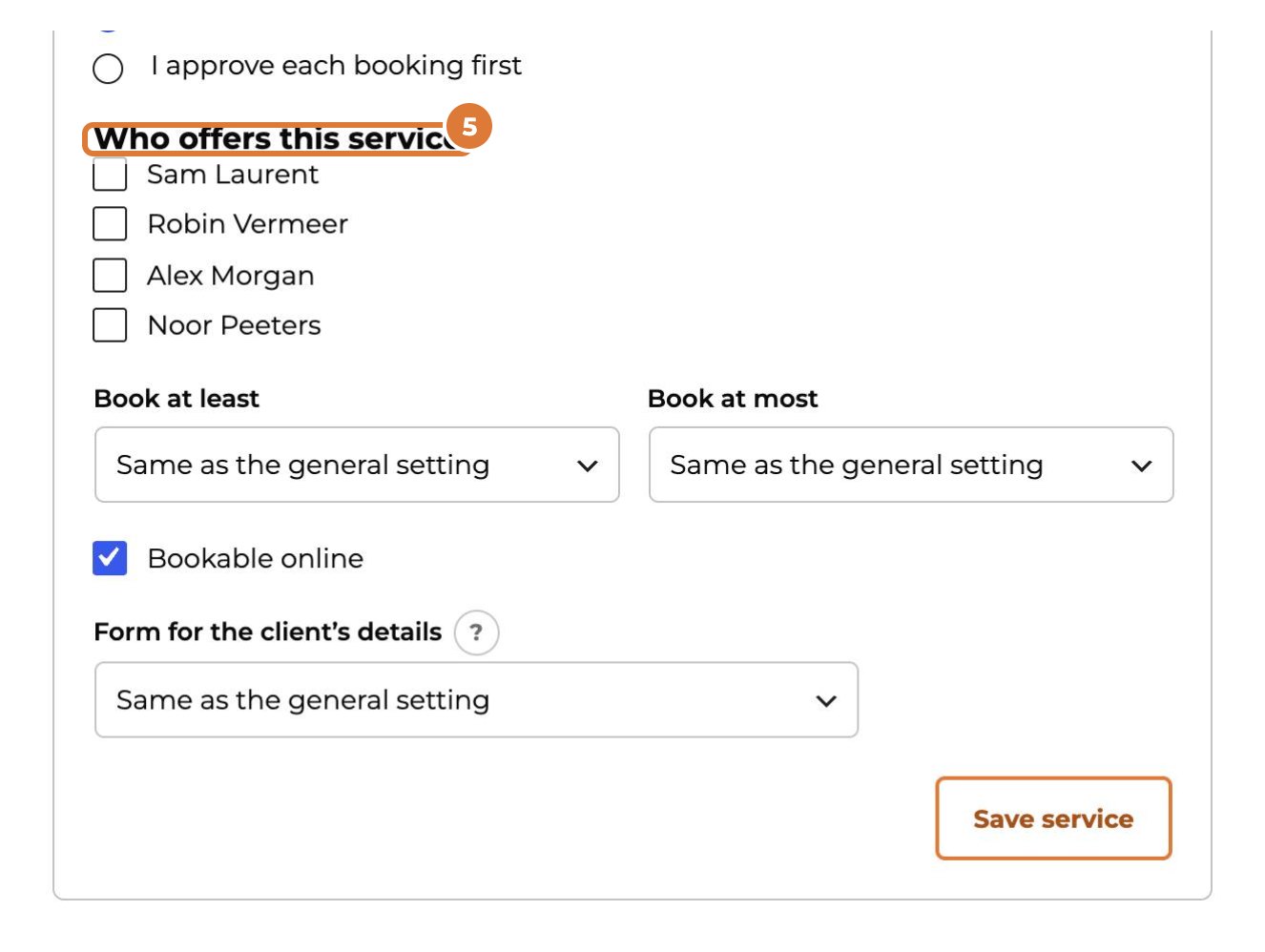
Tick who offers this service. Clients can then choose one of them, or anyone.
Step 6
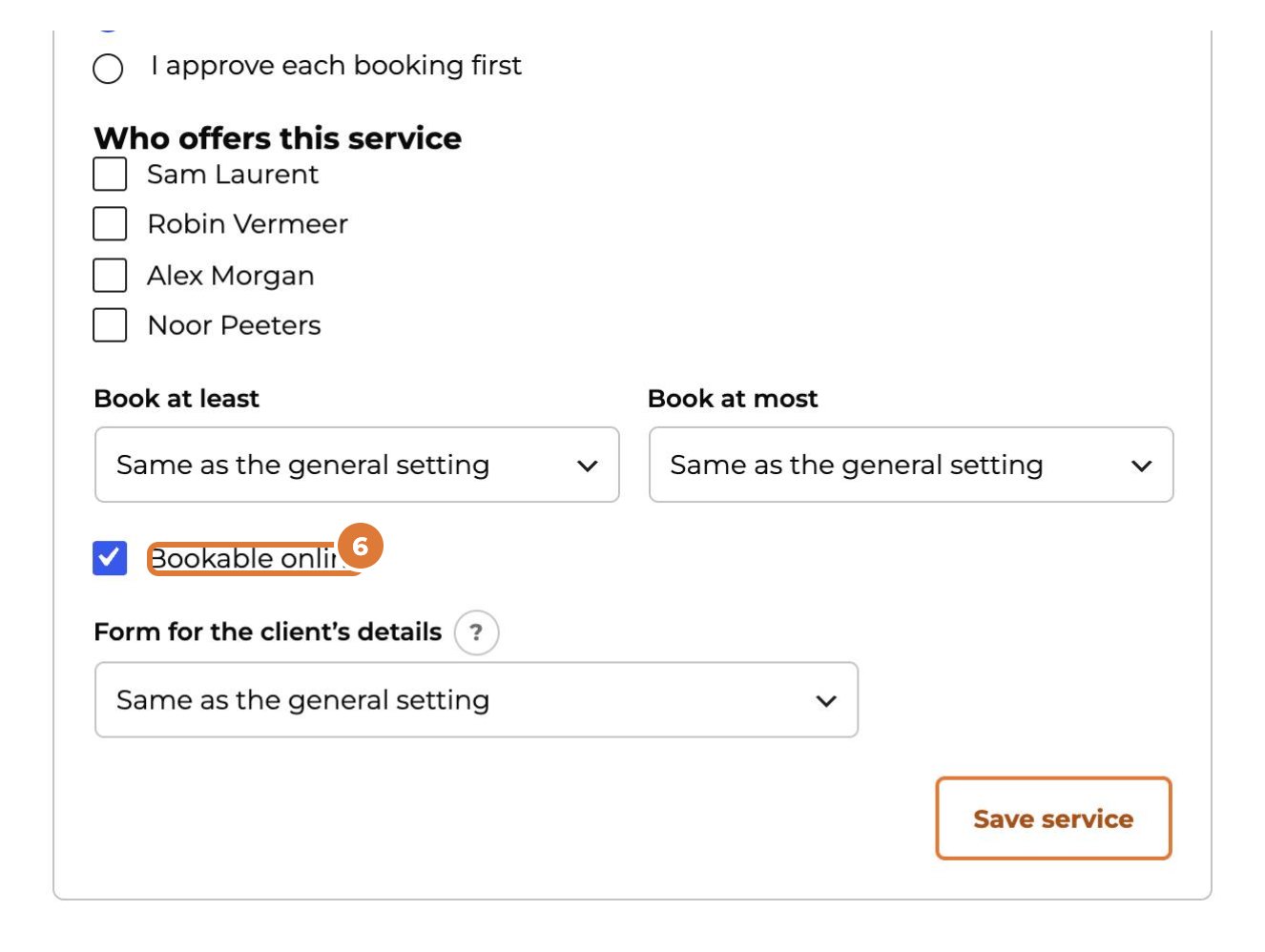
Tick “Bookable online” to show it in the booking calendar on your website.
Step 7
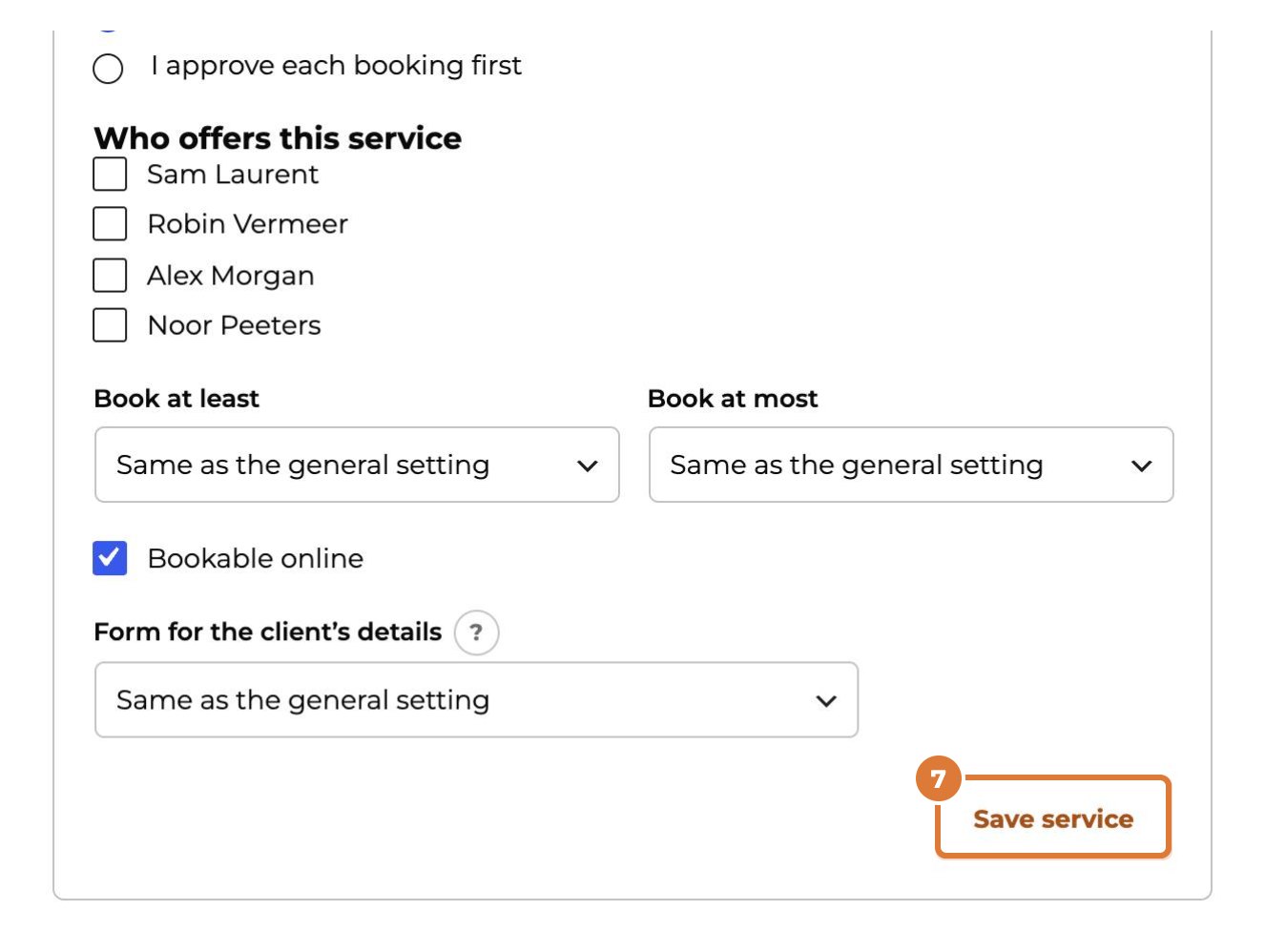
Choose “Save service”.
Step 8
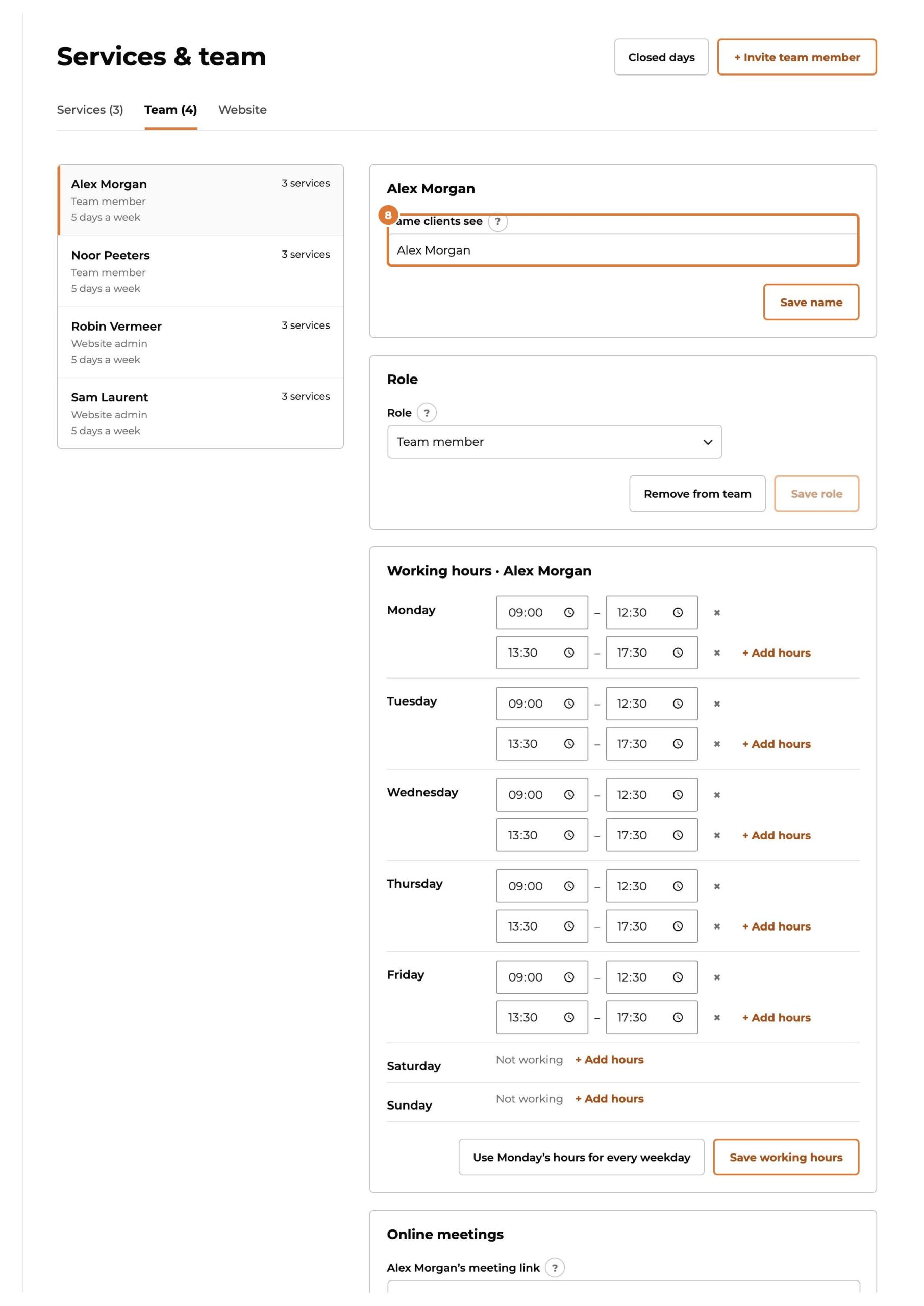
Team tab: pick a team member on the left. At the top, “Name clients see” is the name in emails and the booking calendar. Without one, clients see “Team member”.
Step 9
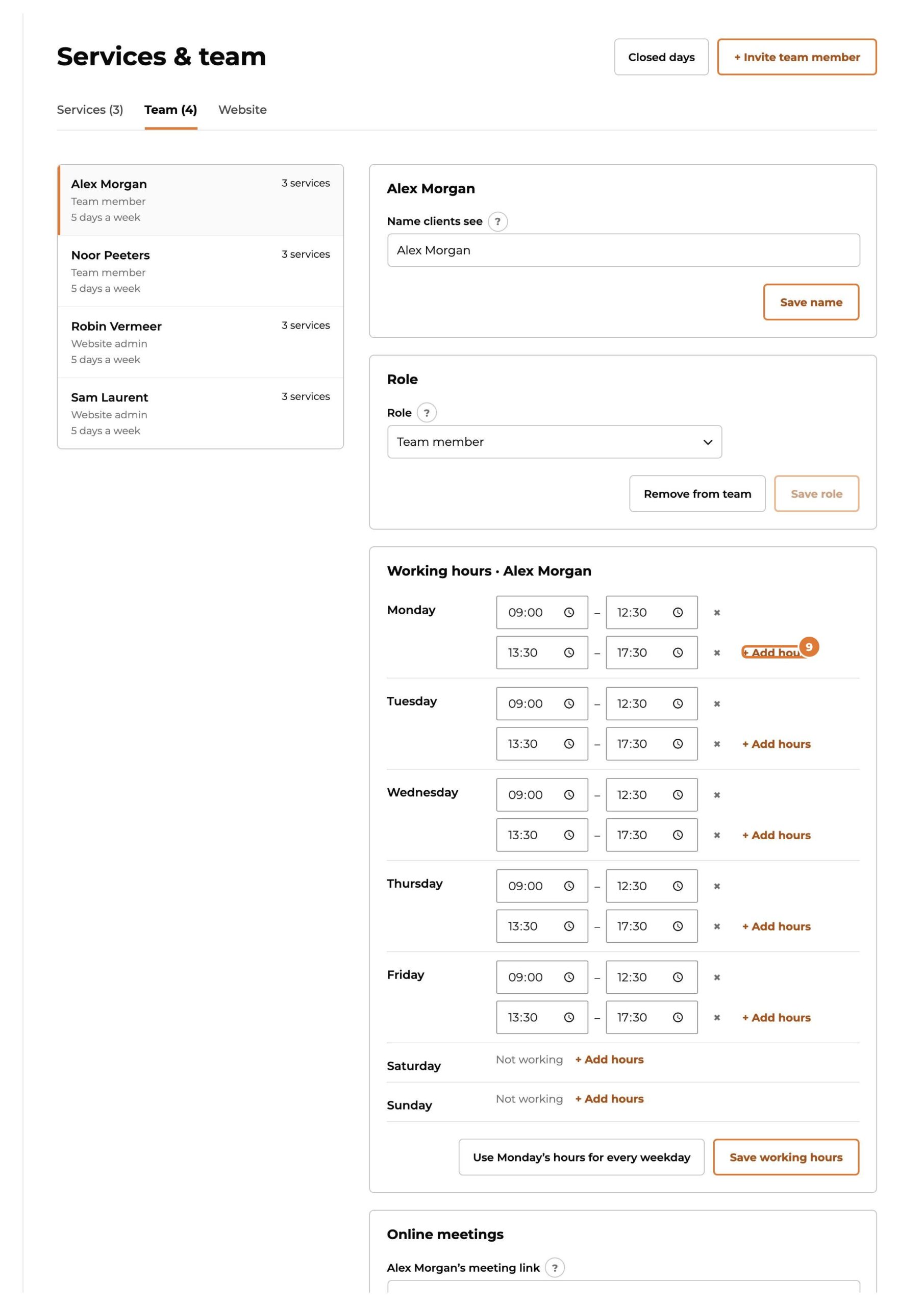
Below it, set their working hours per day. “+ Add hours” adds a second block, for example after lunch.
Step 10
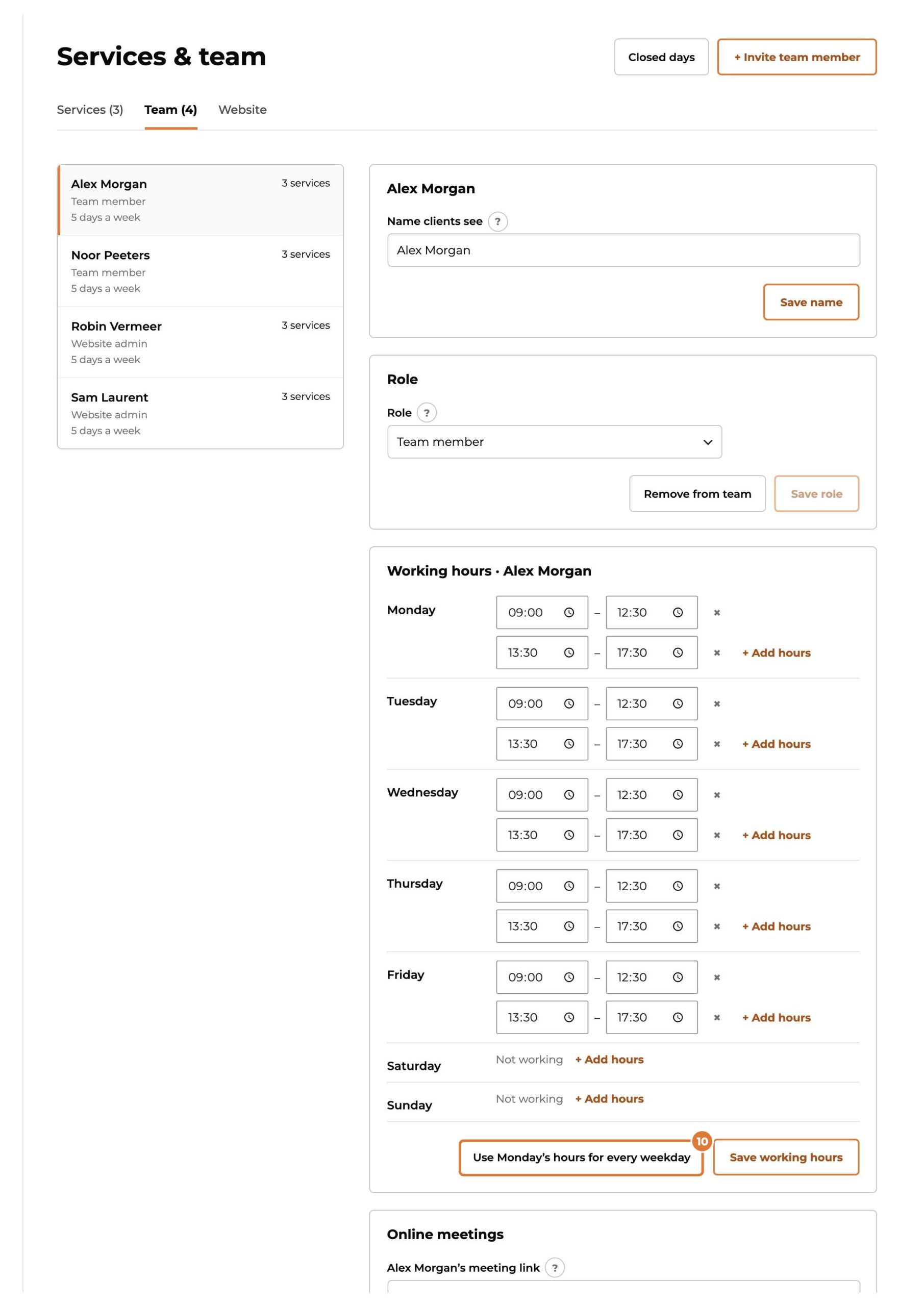
Same hours every weekday? Fill in Monday and choose “Use Monday’s hours for every weekday”.
Step 11
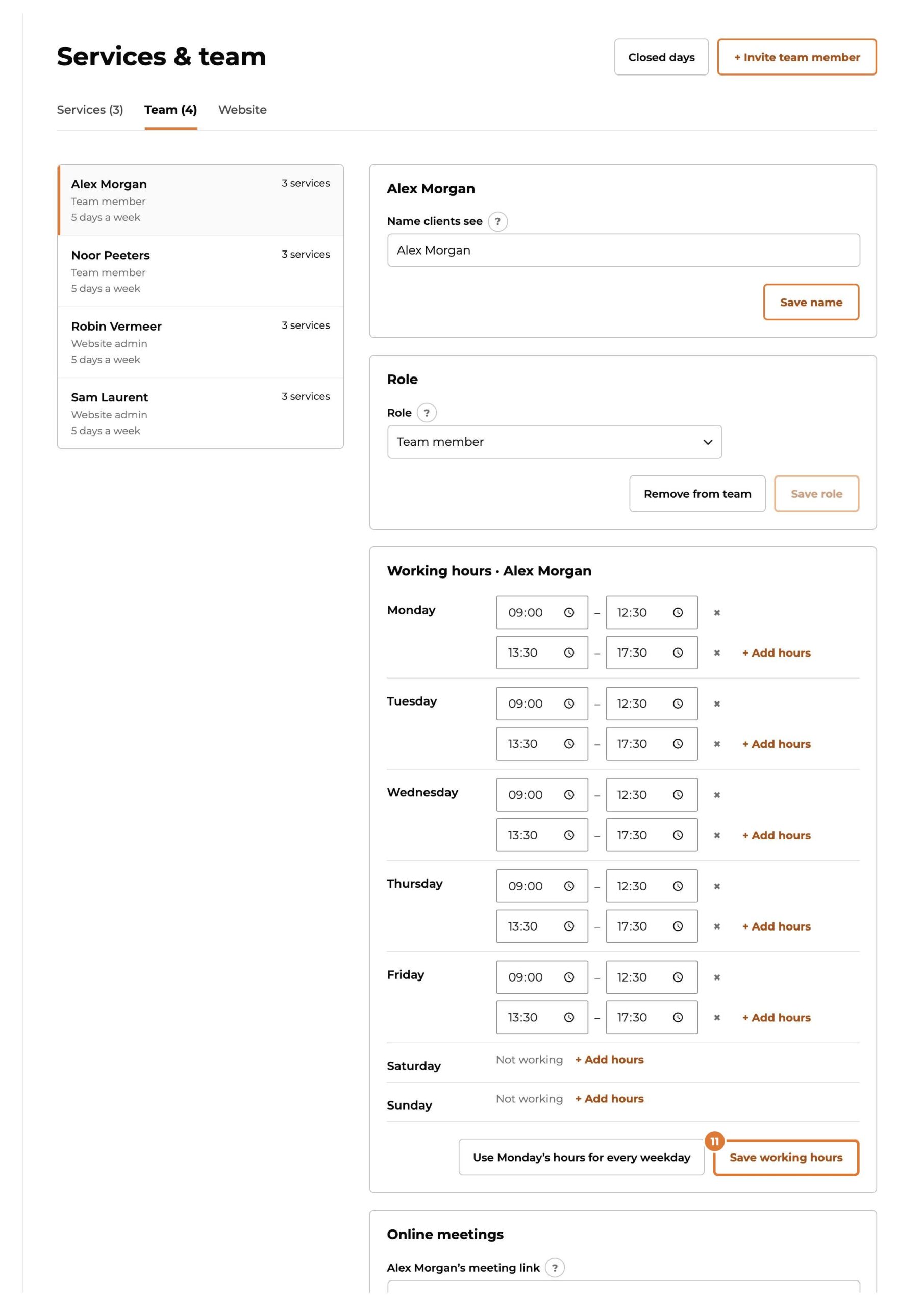
Choose “Save working hours”.
Tip: Time off or a day with extra hours: add it lower on the same page, under “Time off and extra hours”.
Step 12
Public holidays and other days your business is closed: “Closed days”. Nobody can book on those days.