
Step 1
Save your list as a CSV file. In Excel: File → Save As → “CSV UTF-8”. In Google Sheets: File → Download → “Comma-separated values”. Put the column names (First name, Email…) in the first row, one person per row.
Tip: The file can be up to 5 MB, which is tens of thousands of contacts. Columns may be in any order, separated by commas or semicolons.
Step 2
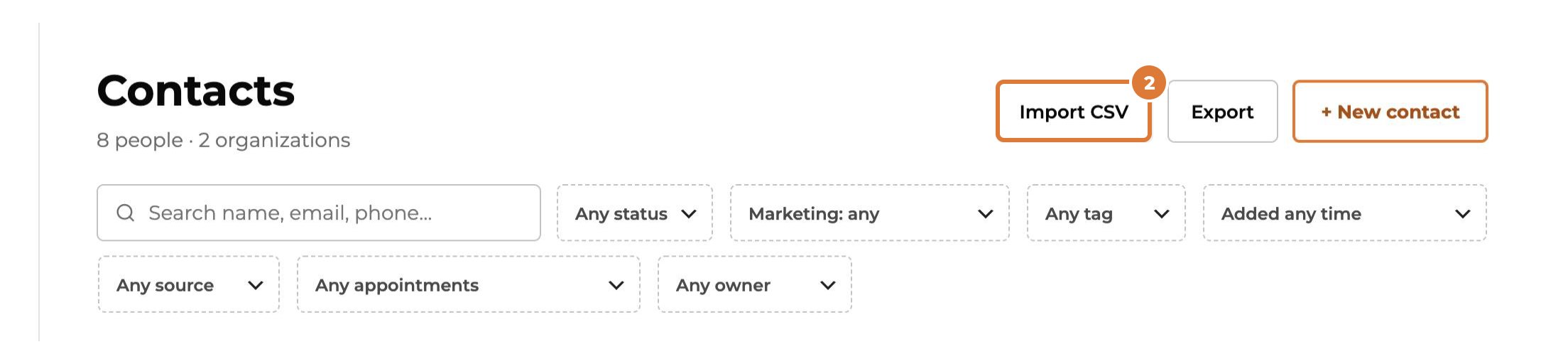
Go to Contacts and choose “Import CSV”.
Step 3
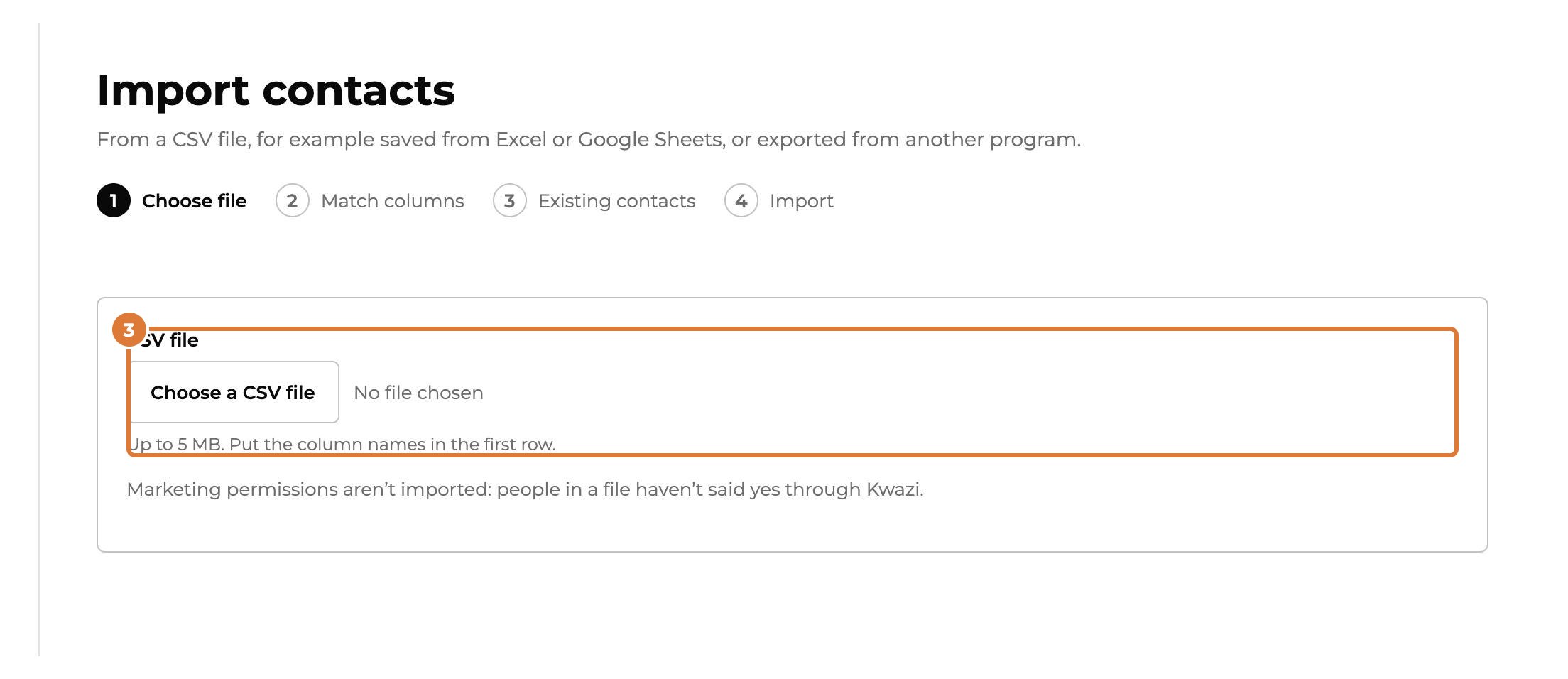
Choose “Choose a CSV file” and pick your file. Kwazi reads it right away.
Step 4
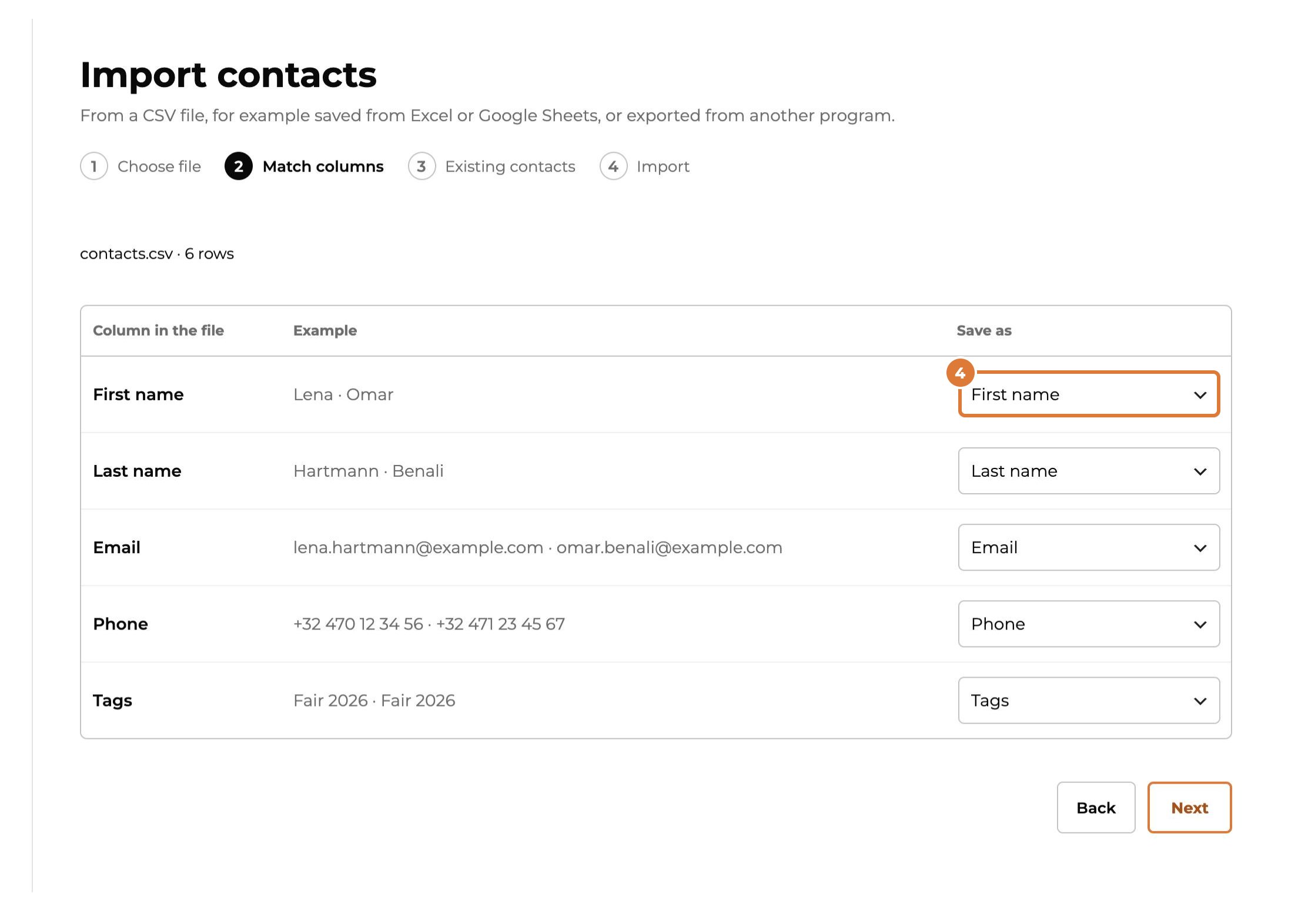
Check under “Save as” where each column goes. When the column names are clear, Kwazi has already chosen for you. Columns you don’t need: “— Don’t import —”. You can also save a column in a field of your own.
Step 5
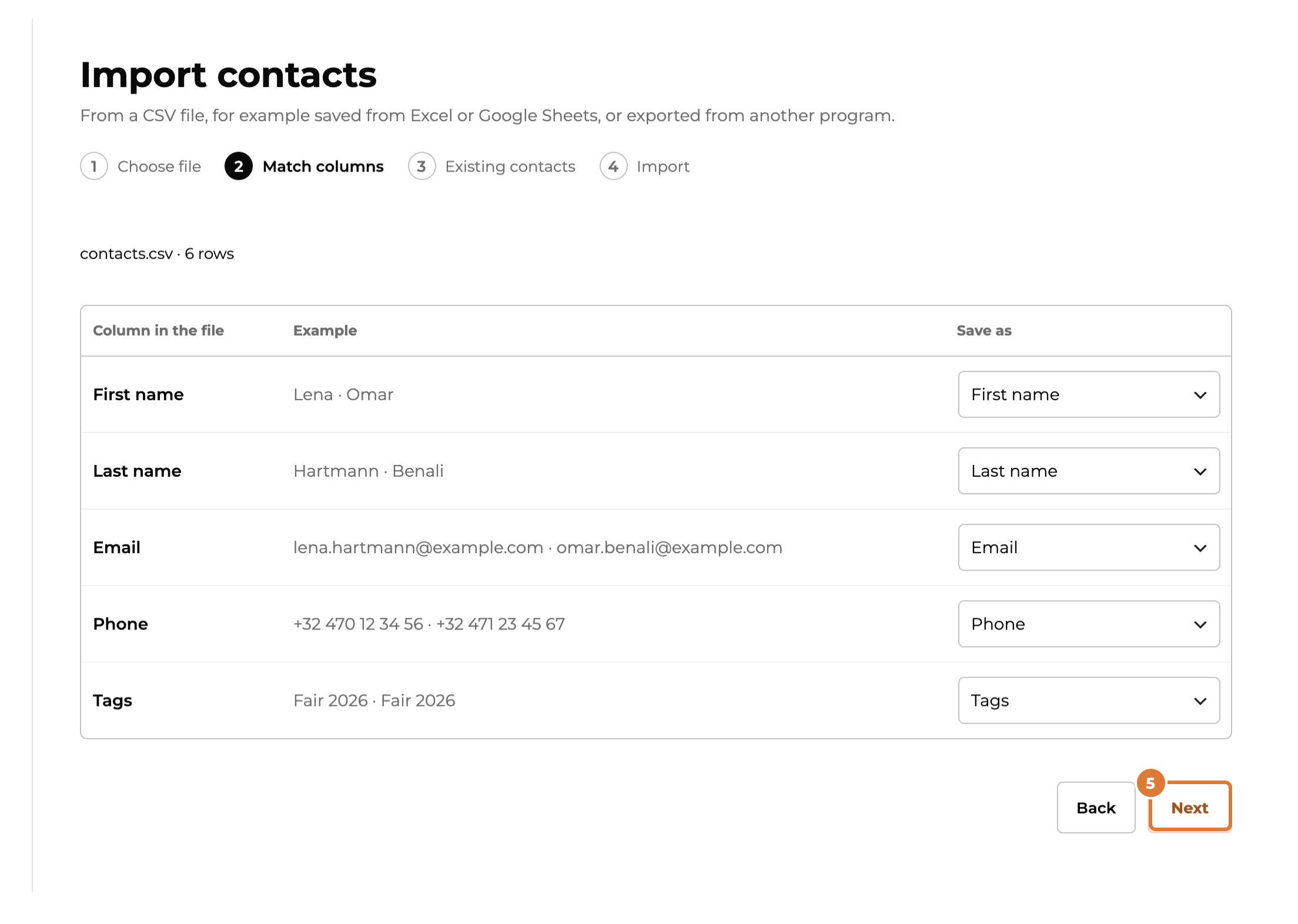
The examples next to each column show the first rows of your file, so you can see whether it fits. Then choose “Next”.
Step 6
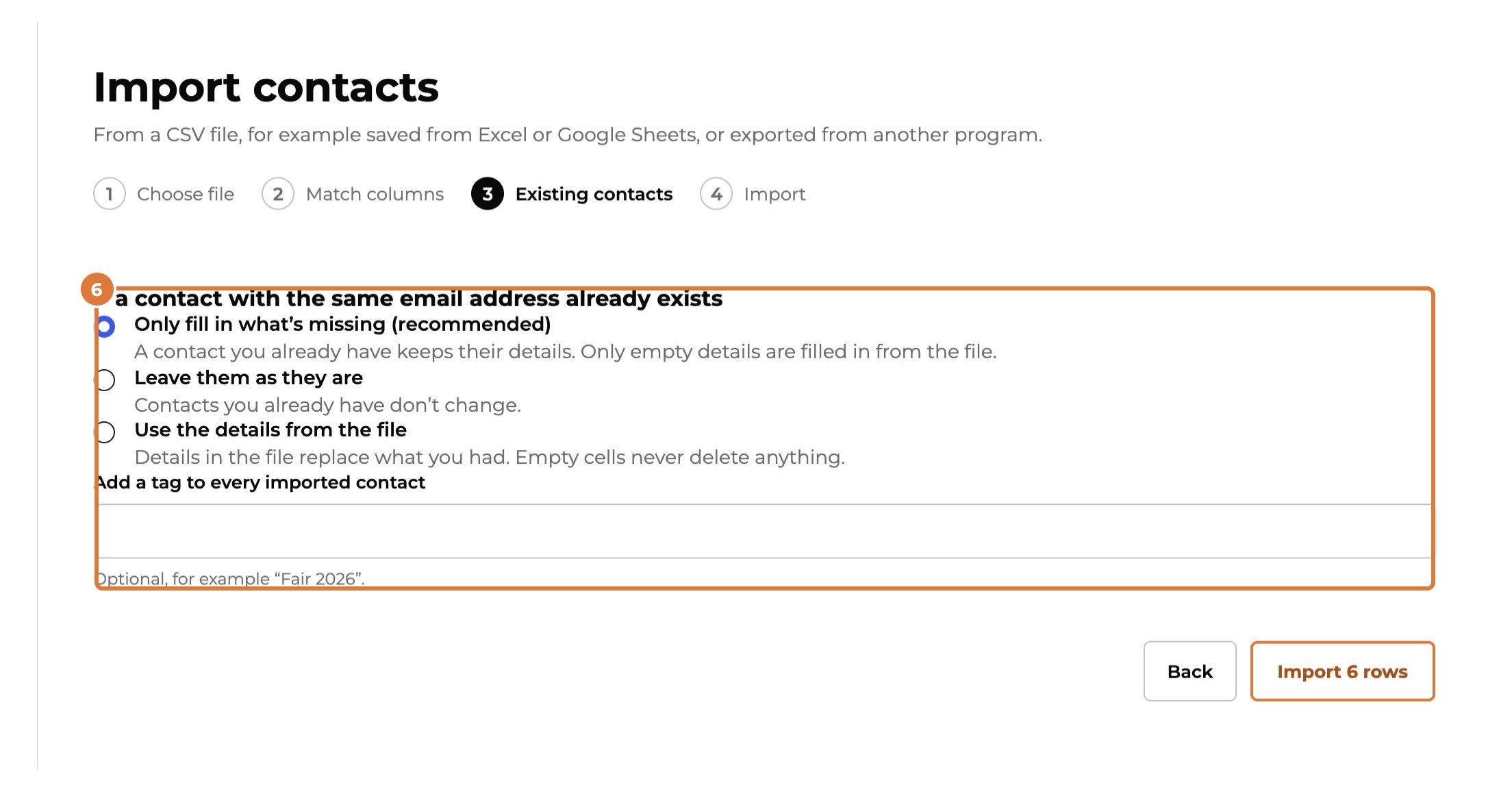
Choose what happens when someone with the same email address is already in Kwazi. “Only fill in what’s missing” never overwrites what you have: the safe choice.
Step 7
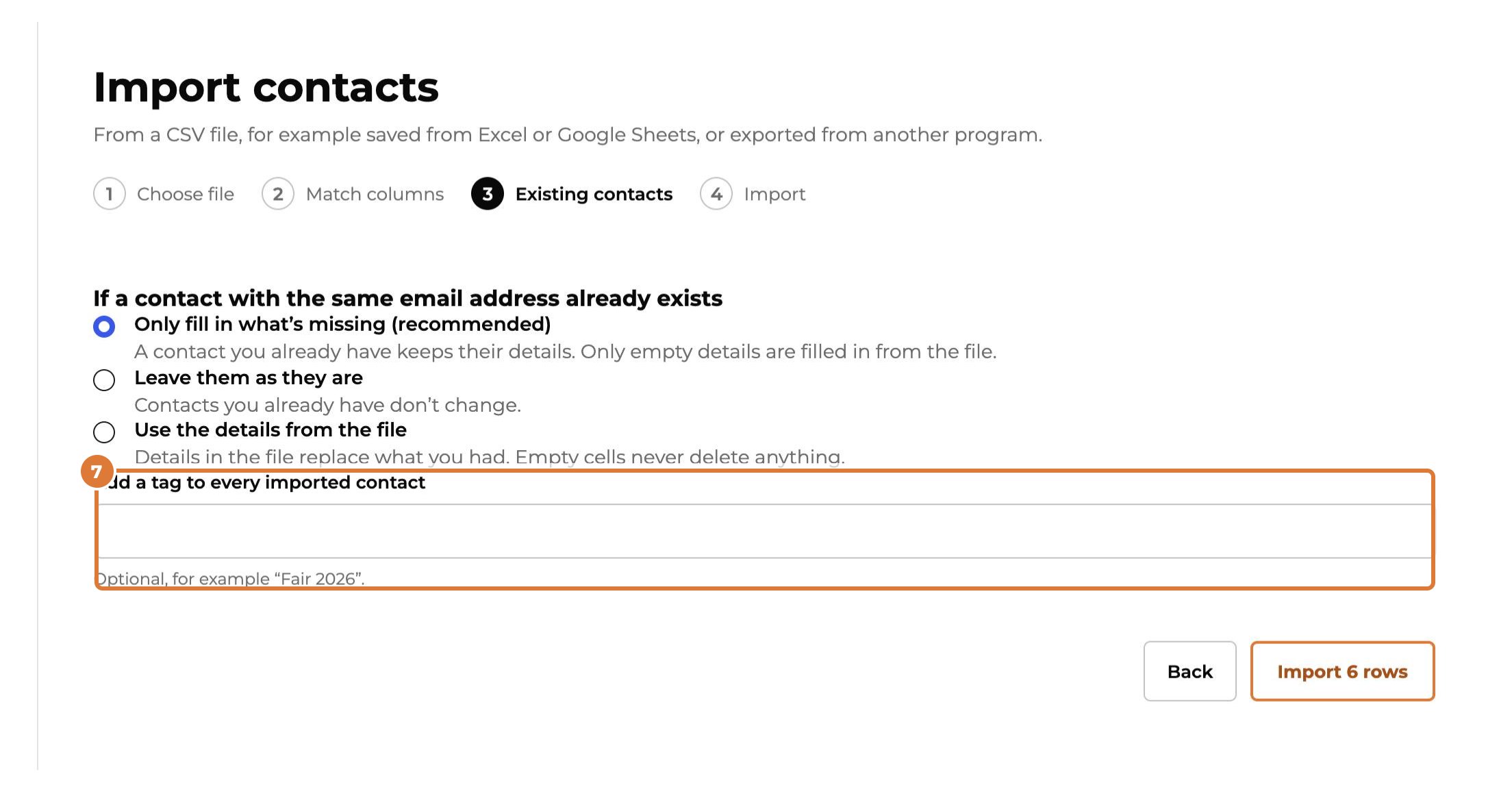
Optional: add a tag to every imported contact, for example the name of the event where you met them. You can then find them all at once.
Step 8
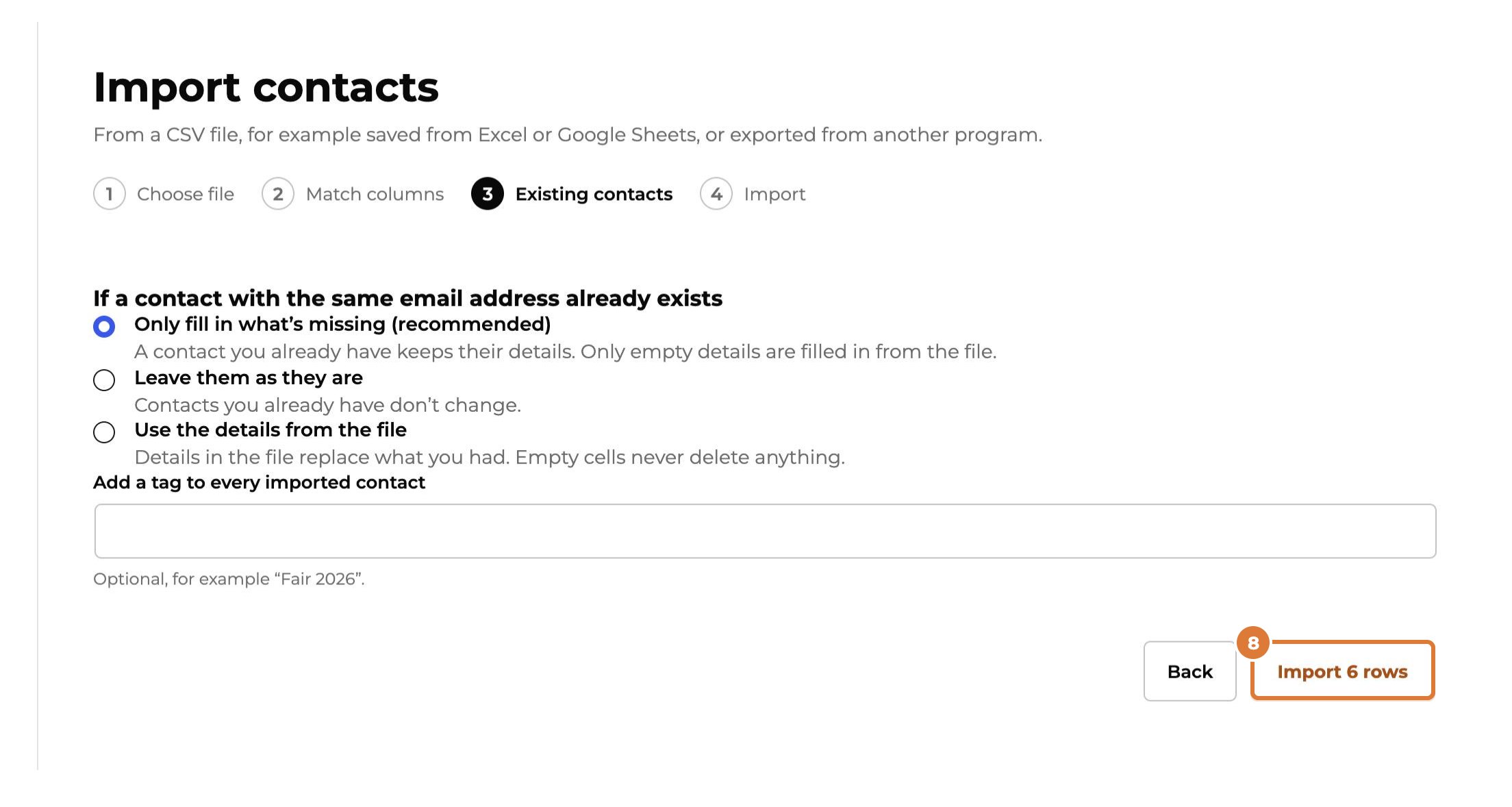
Choose “Import”: the button shows how many rows go in. You can leave the page while it runs.
Step 9
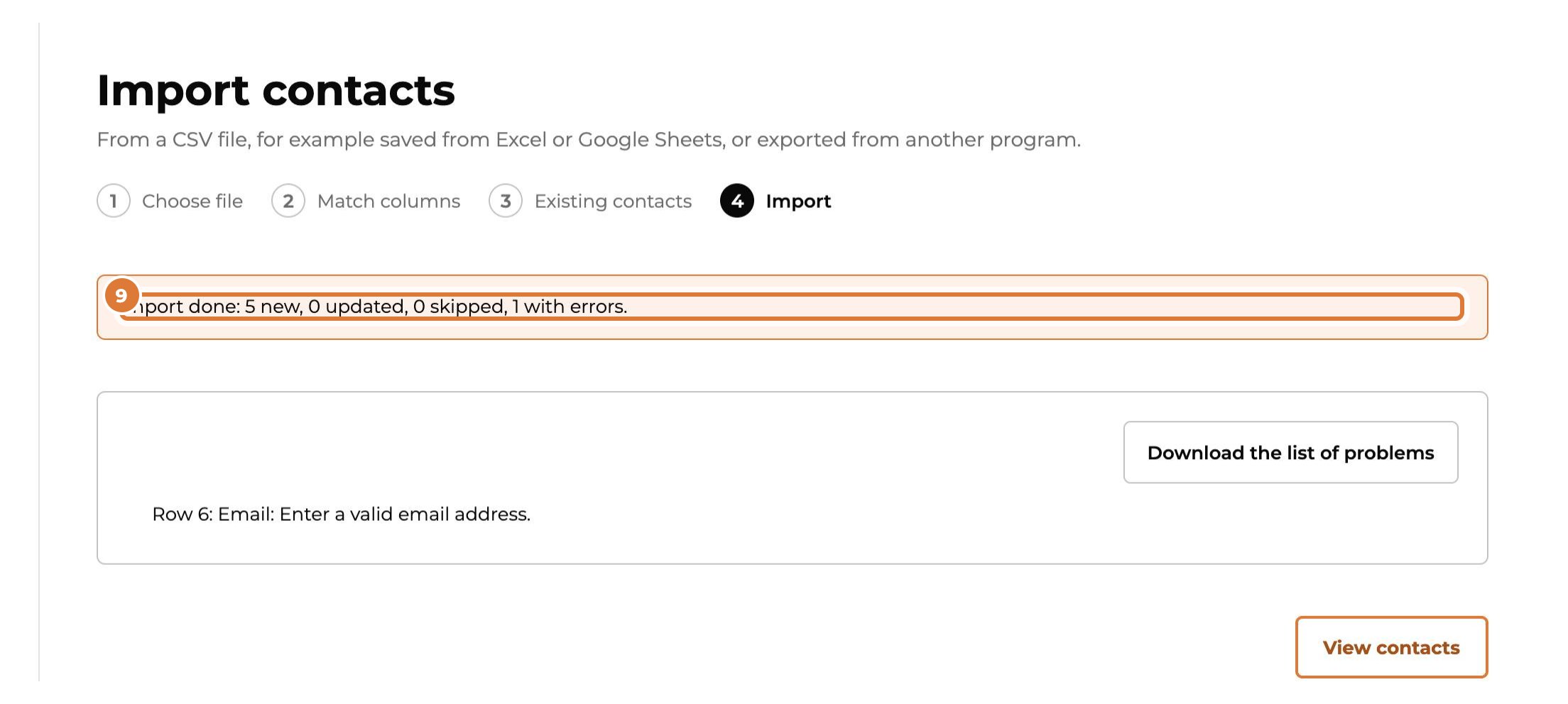
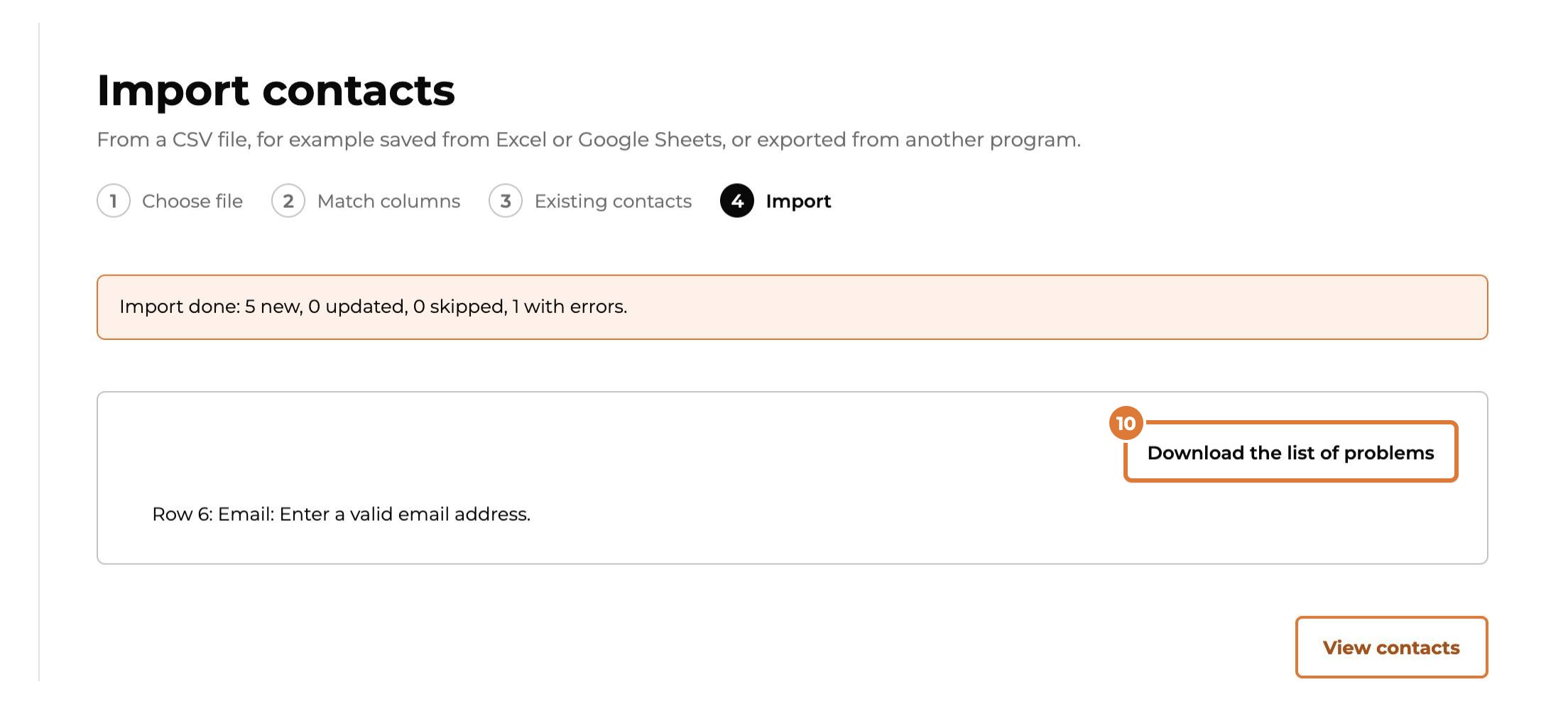
At the end you see how many contacts are new, updated or skipped.
Step 10
Rows with a problem (for example an email address without a domain) are listed. “Download the list of problems” gives you those rows: fix them and import that file again.
Tip: Marketing permissions are never imported: people in a file haven’t said yes through Kwazi. Ask them with a form with a consent checkbox.