
Step 1
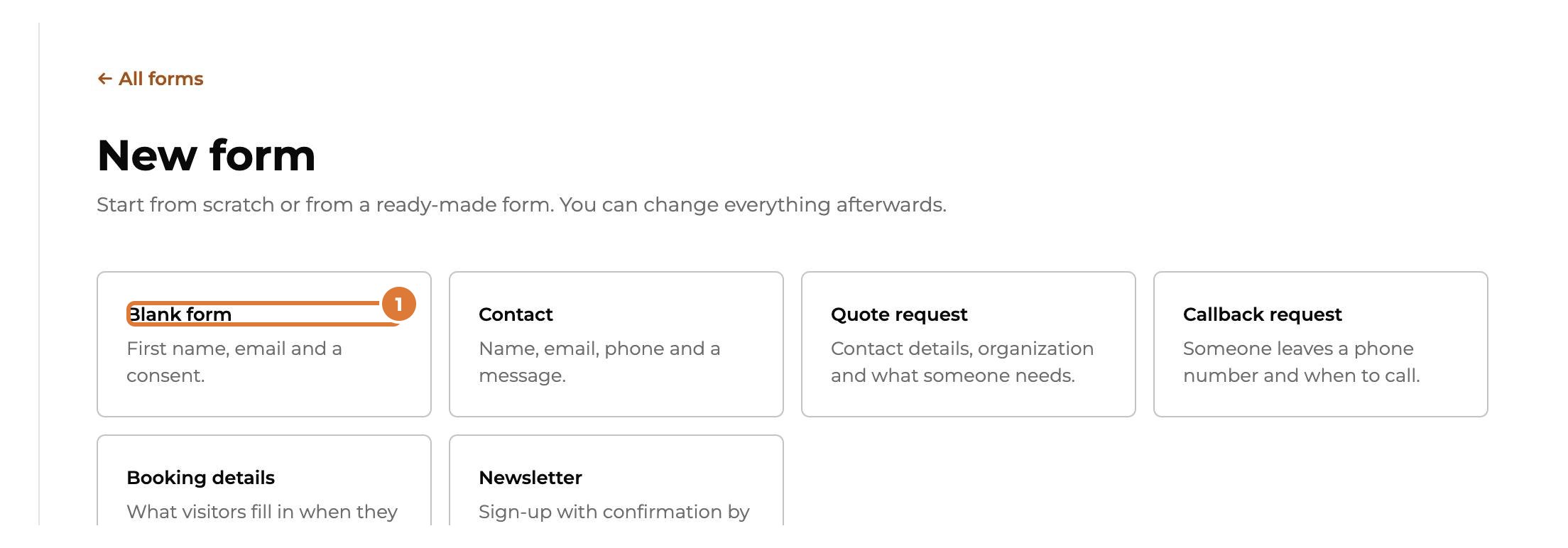
Go to Forms and choose “+ New form”. Start from “Blank form”…
Step 2
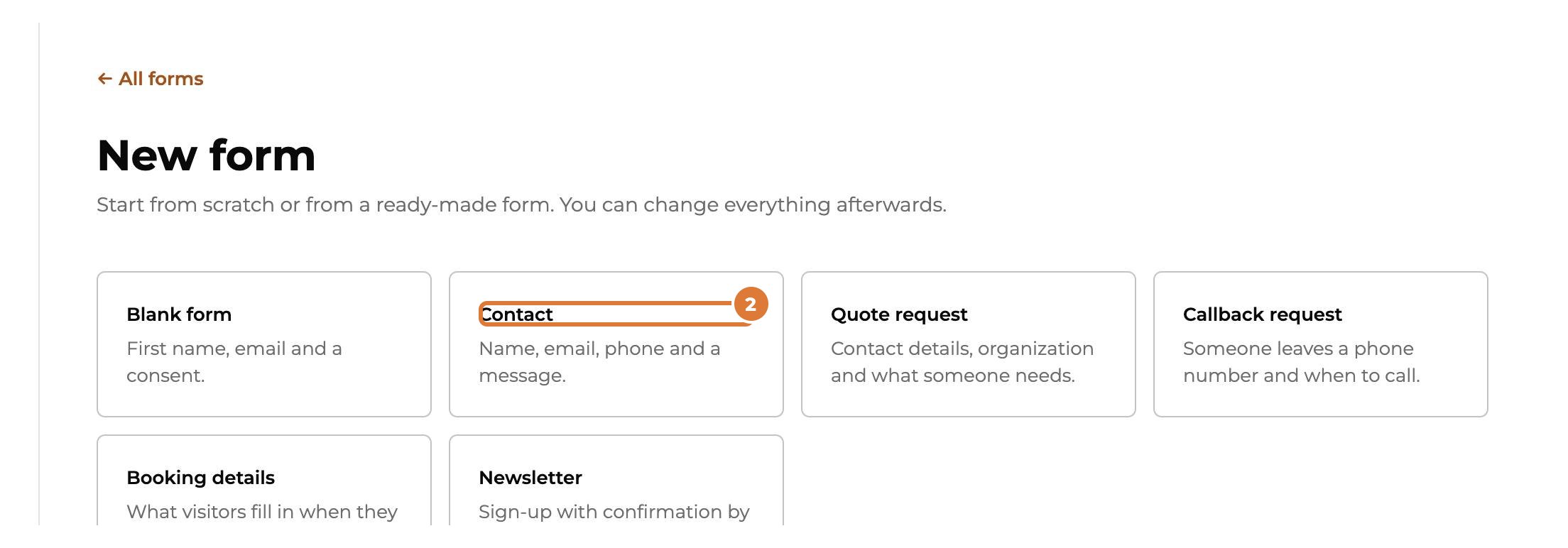
…or from a ready-made form (Contact, Quote request, Callback request, Booking details, Newsletter). You can change everything afterwards.
Step 3
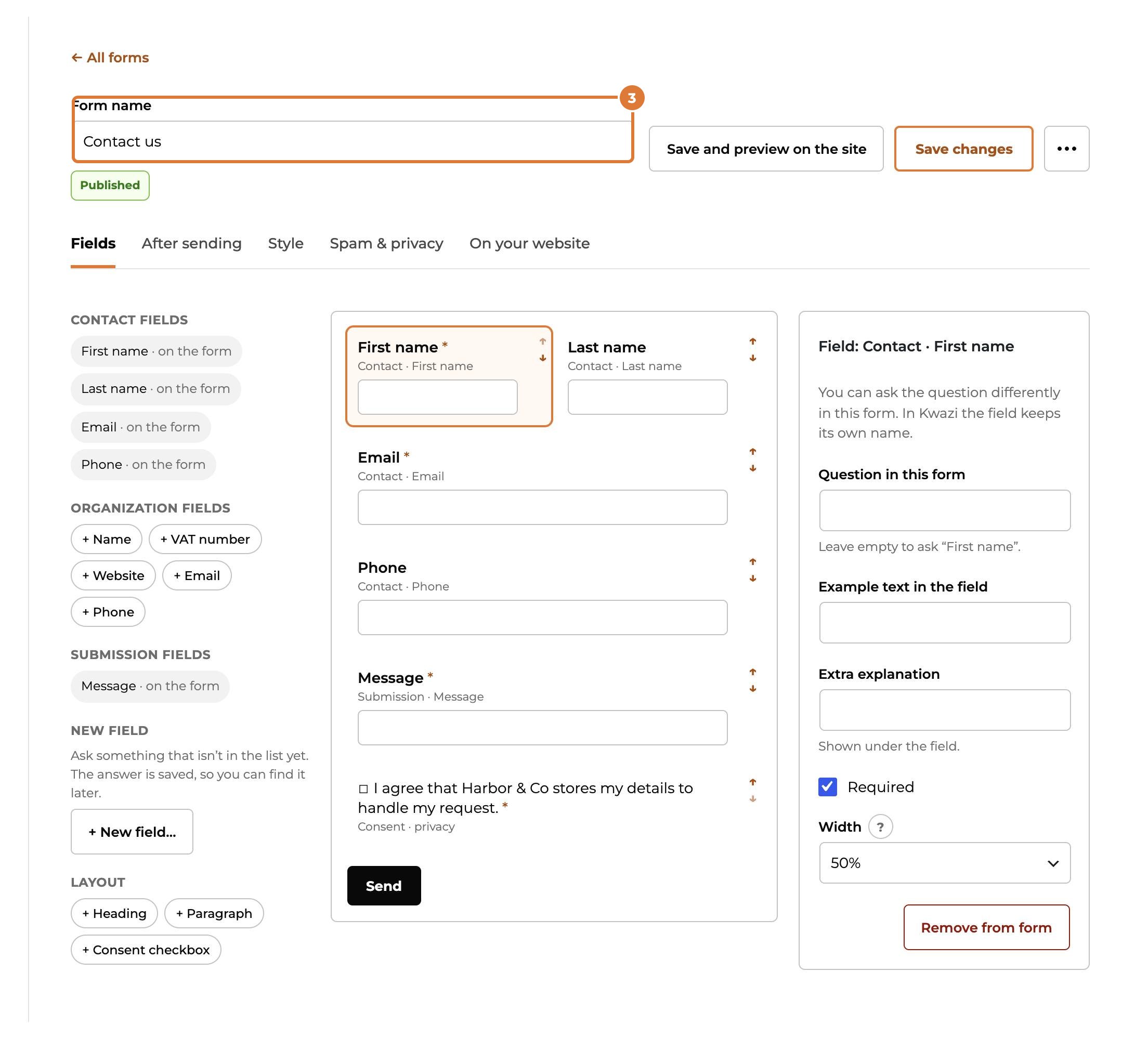
Give the form a name. Visitors don’t see it; it helps you find the form and its answers.
Step 4
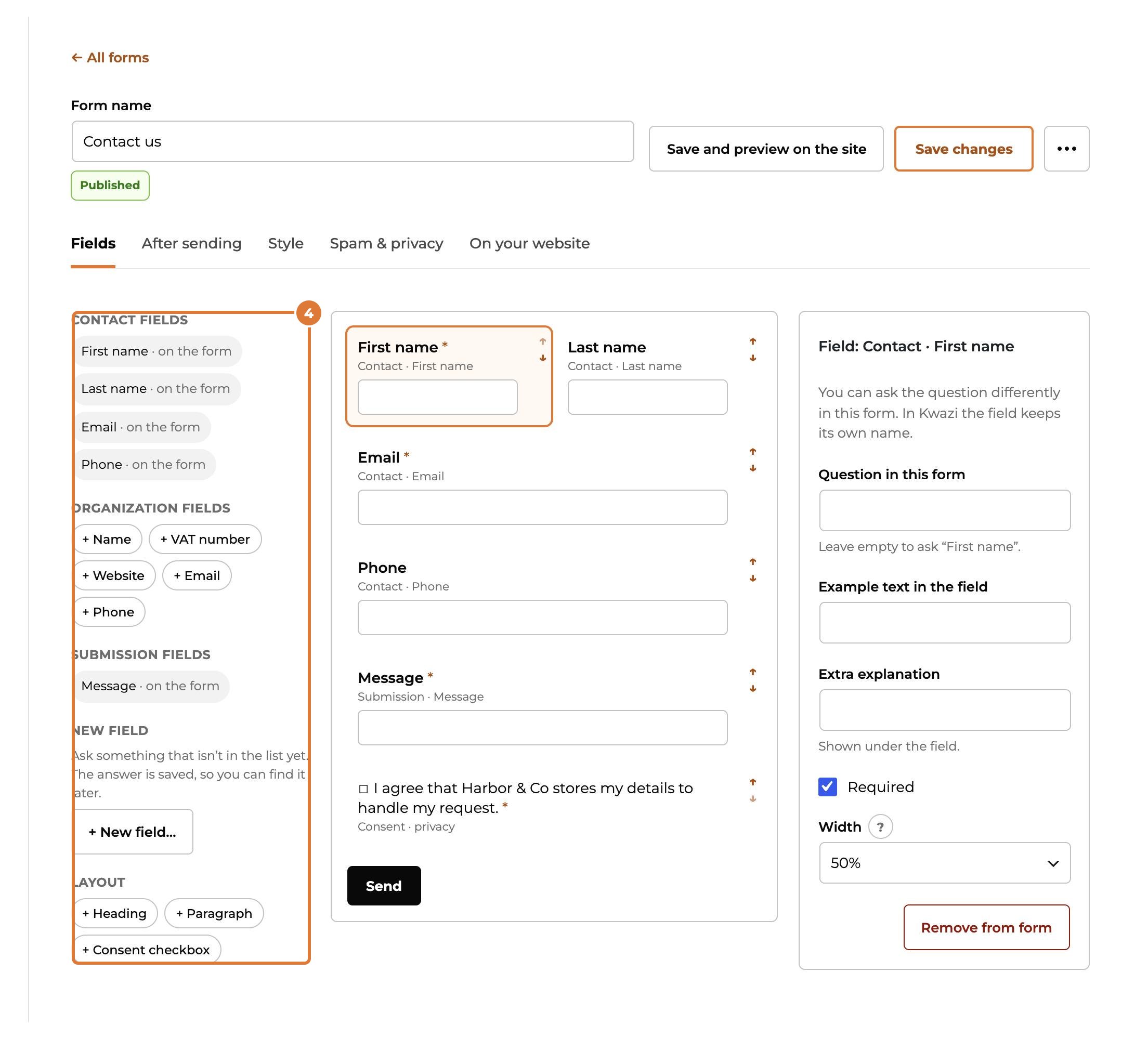
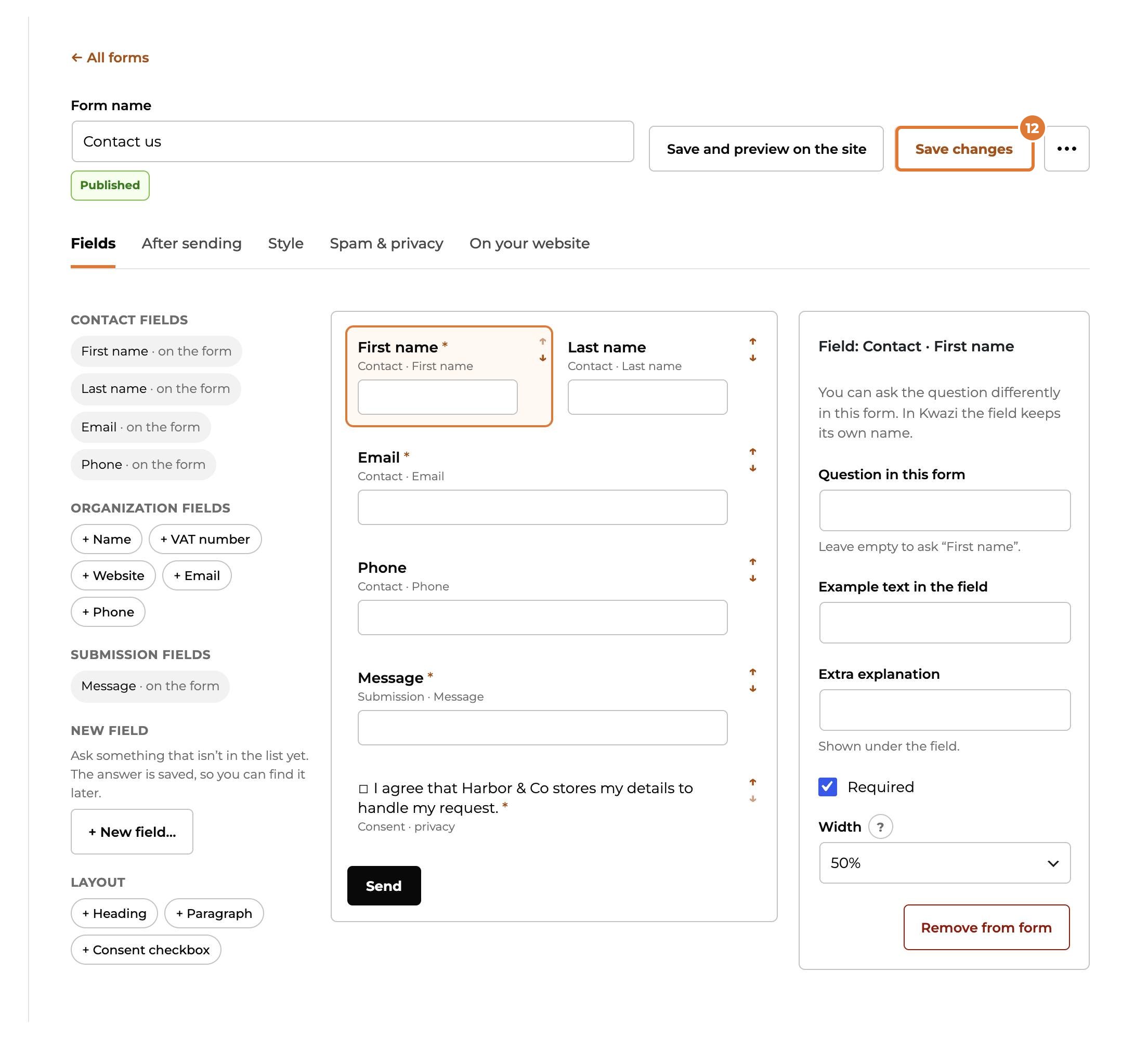
Add fields from the panel on the left. Drag them, or use the arrows, to change the order. Click a field in the middle to change its question, make it required or set its width.
Step 5
Need a question that isn’t in the list? Choose “+ New field…”. The answer is then saved with the contact, so you see it later too.
Step 6
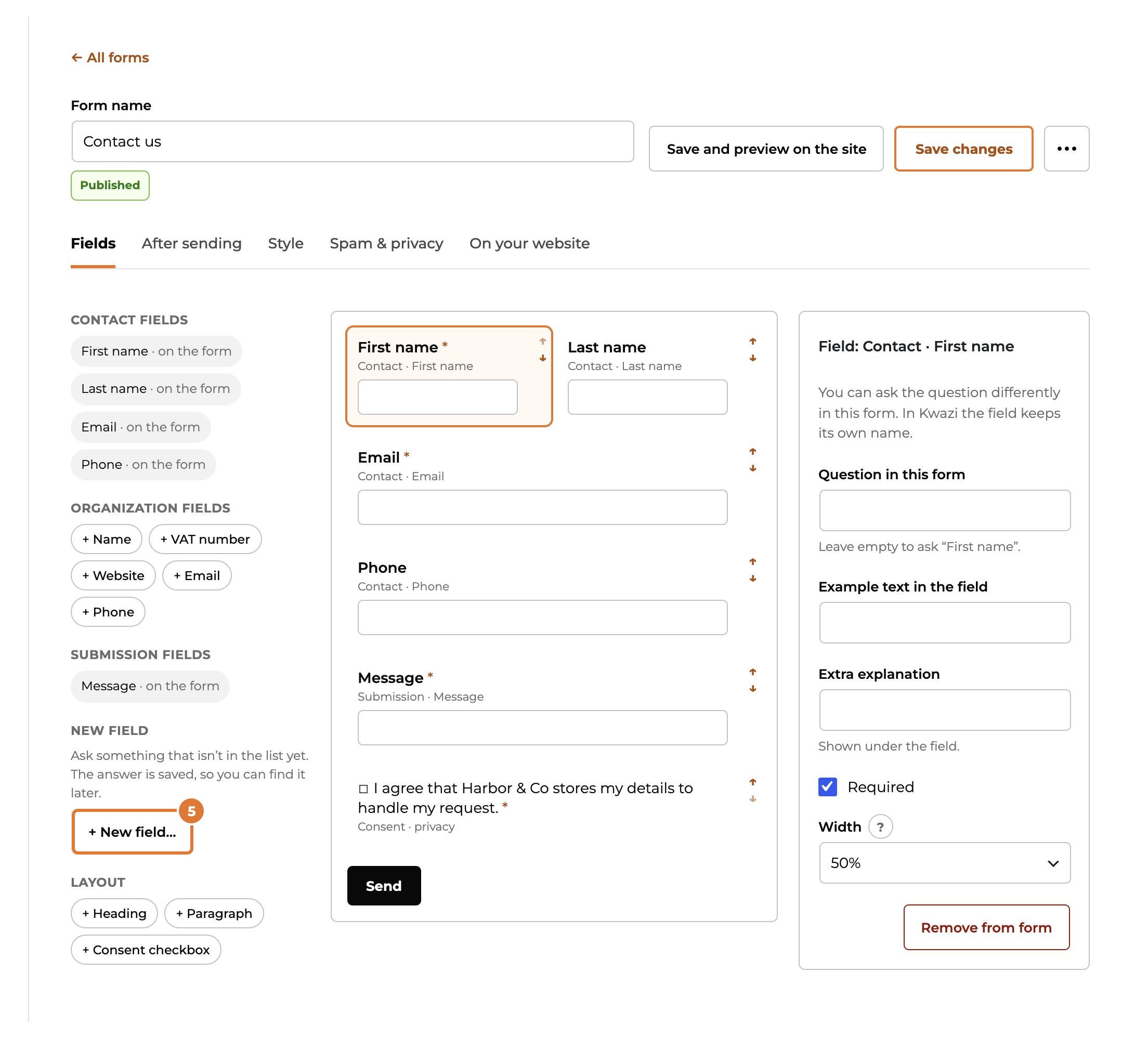
Want to send people news or offers? Add “+ Consent checkbox” and tick that it is for marketing emails. The visitor then confirms by email before being subscribed, as the law asks.
Step 7
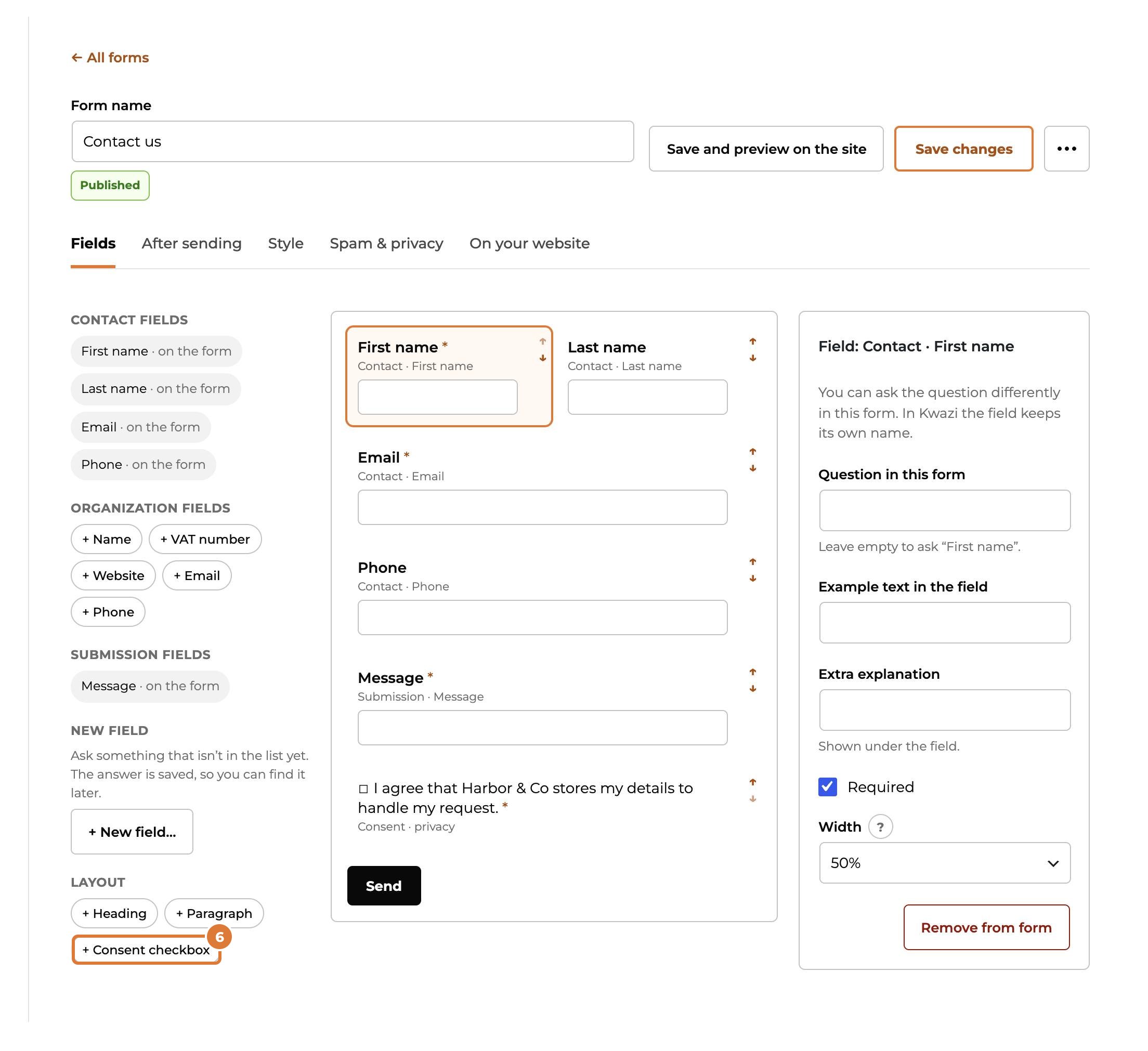
The tabs at the top hold the rest: what happens after sending, the style, spam and privacy, and how to put the form on your website.
Step 8
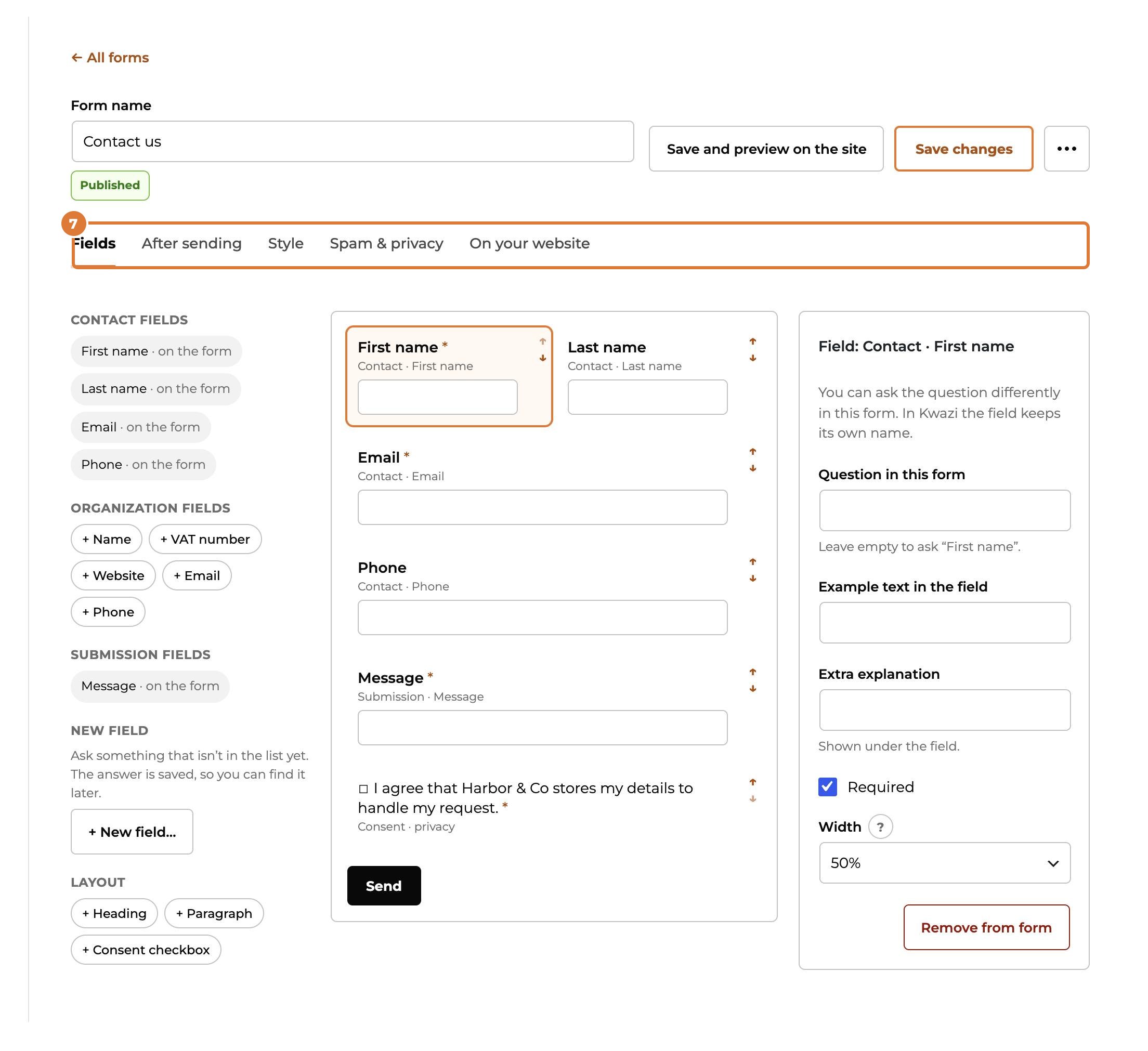
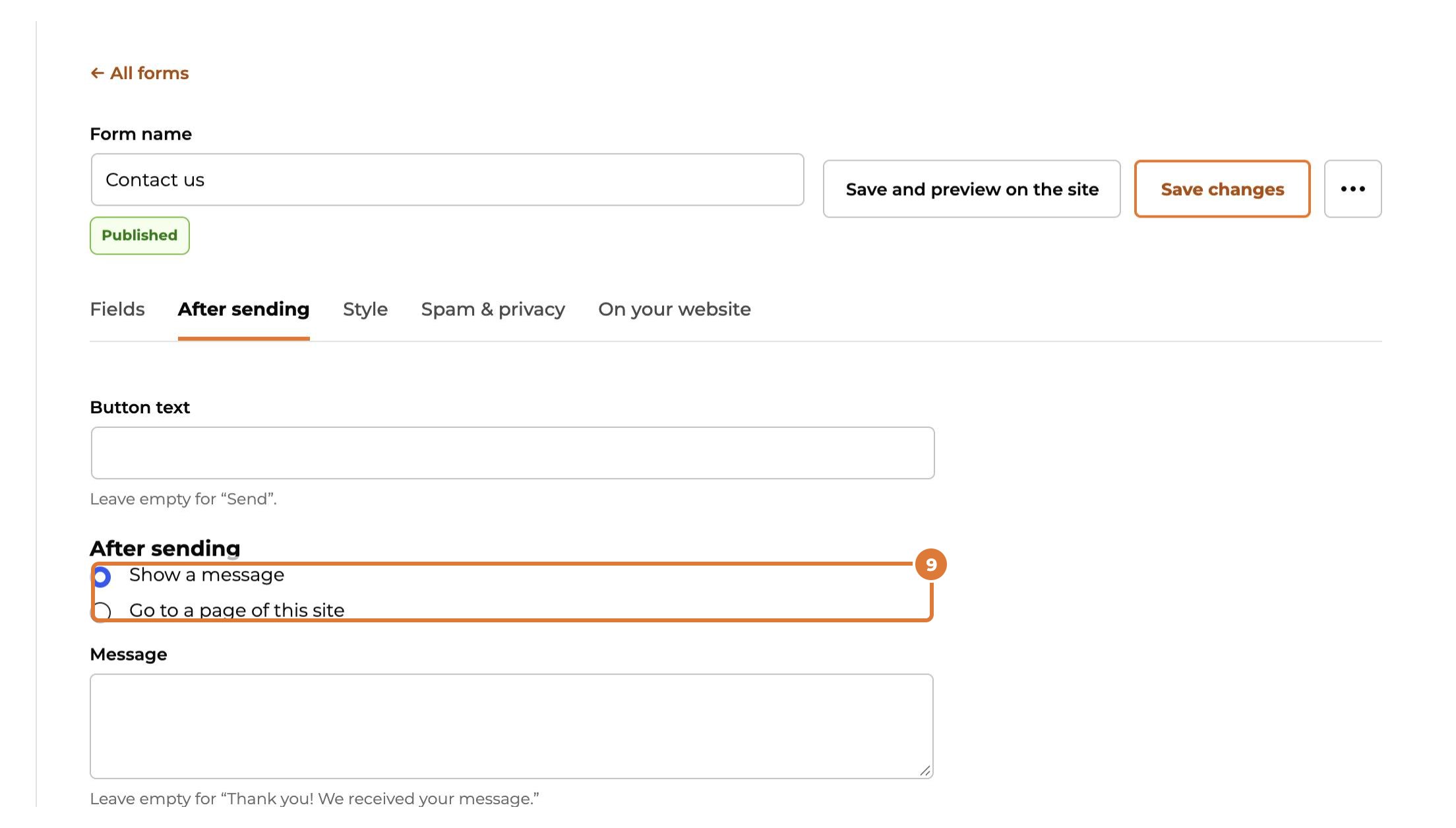
After sending: choose the text of the button…
Step 9
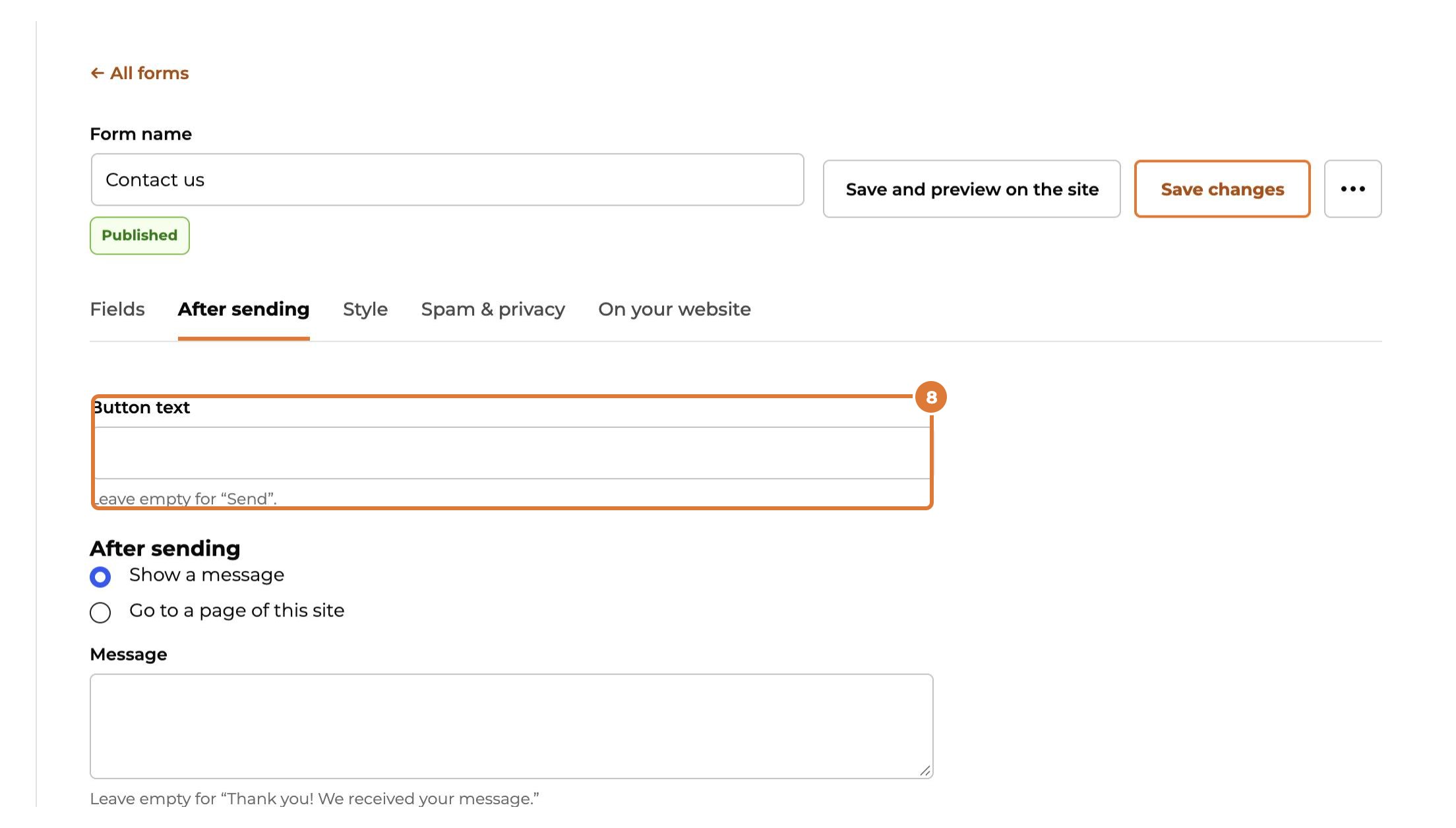
…and show a thank-you message or send the visitor to a page of your website, for example a page with a discount code.
Step 10
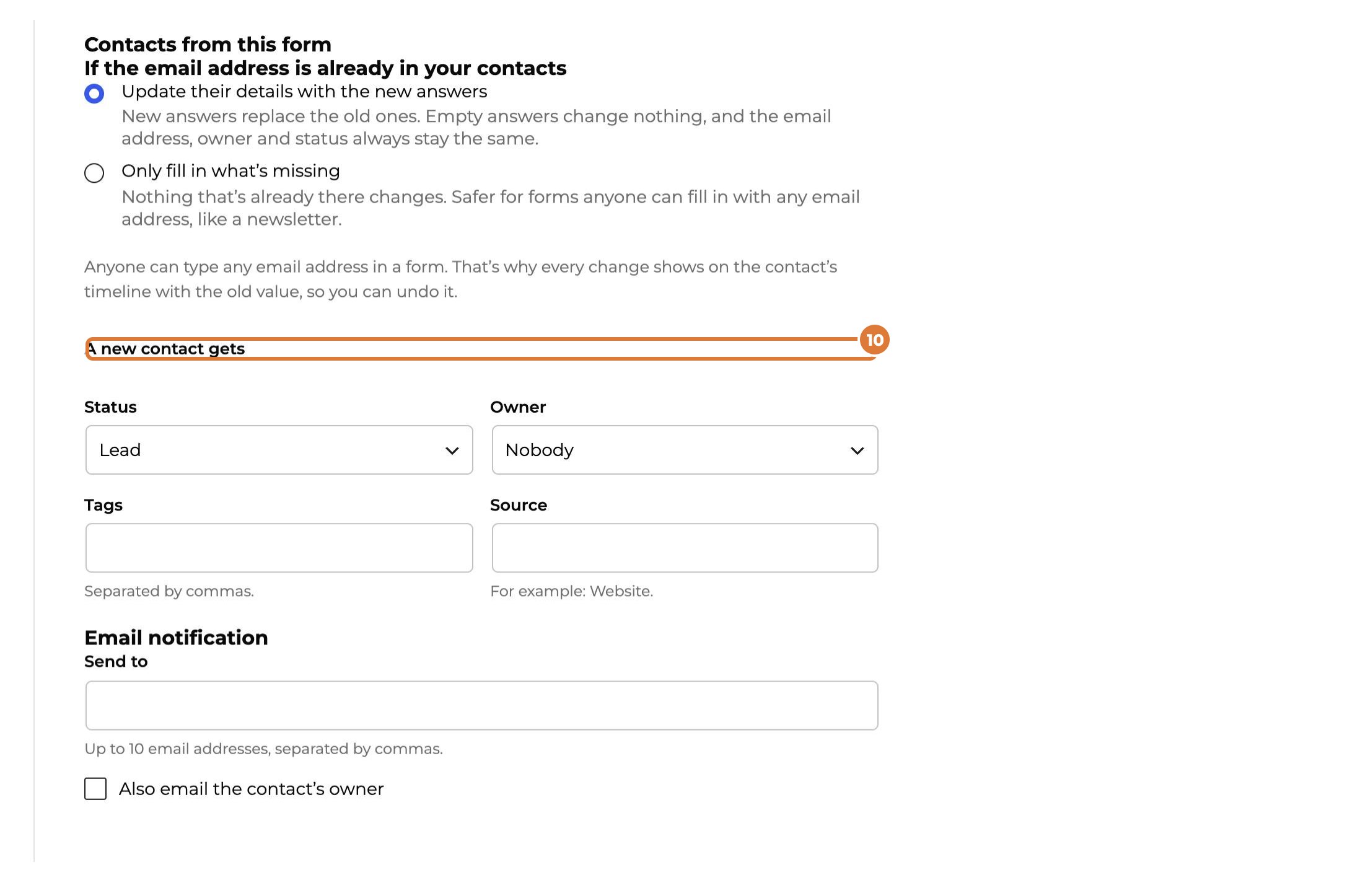
Spam & privacy: choose what a new contact gets, for example the status Lead, an owner and a tag.
Step 11
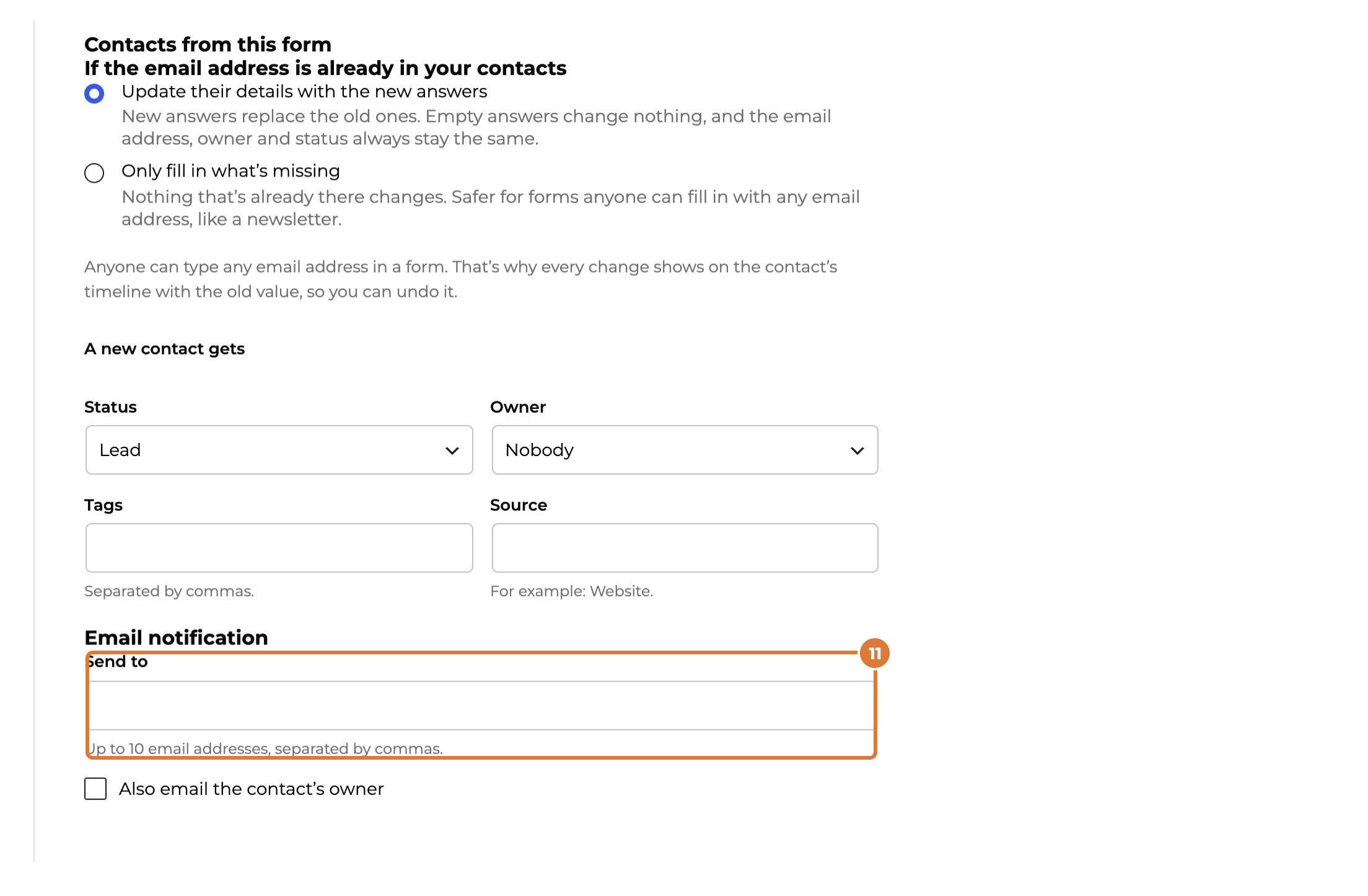
Fill in who gets an email for every new answer. Without an address, answers only show in Kwazi.
Step 12
Style: match the colours and fonts of your website, with a live preview. Then choose “Save and publish” (for a form that is already live: “Save changes”).
Tip: Spam is filtered without puzzles for your visitors. Blocked answers stay 30 days under Submissions (“Blocked as spam”), in case one was real.