
Step 1
Go to Services & team, “Team” tab. Your own name is selected.
Step 2
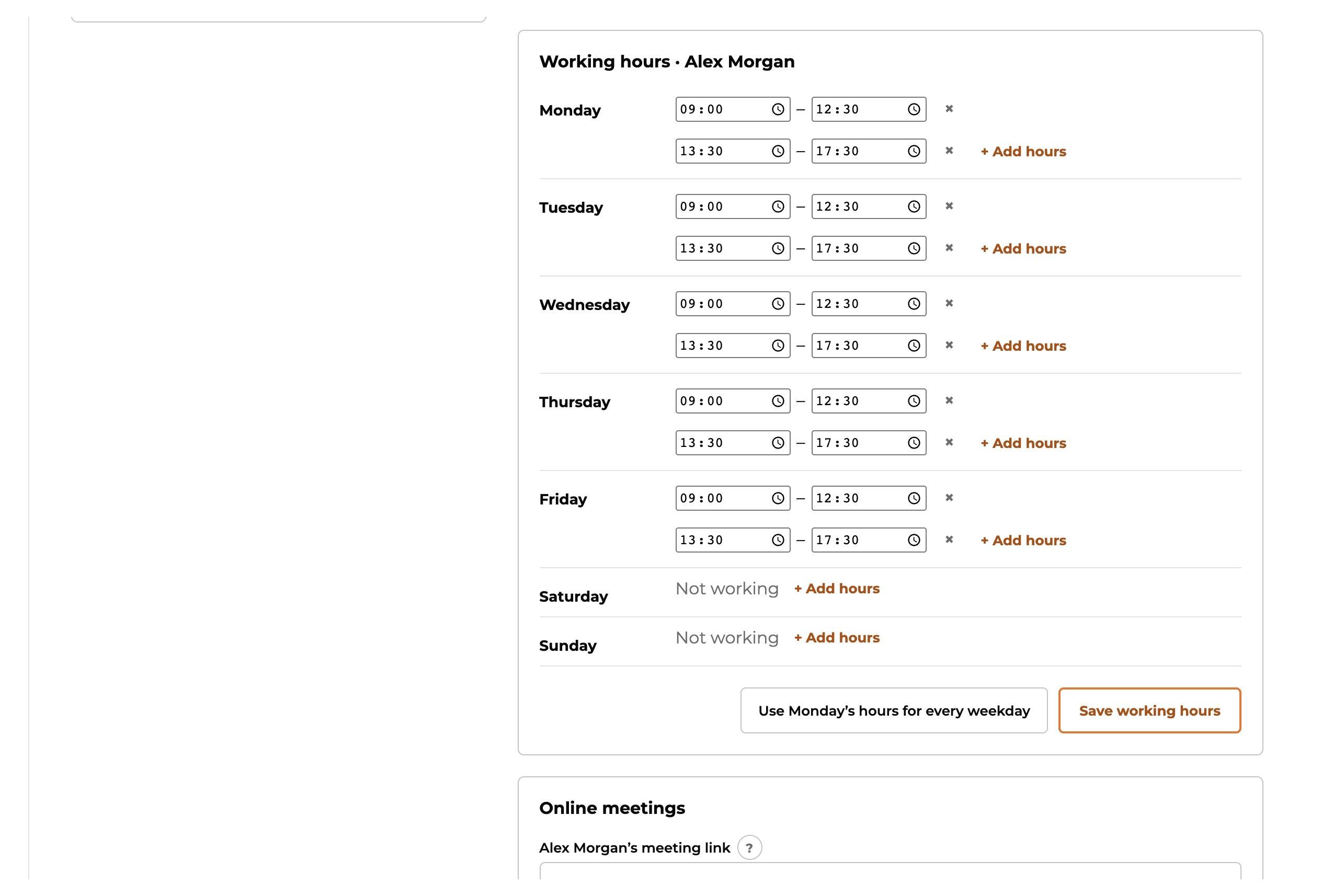
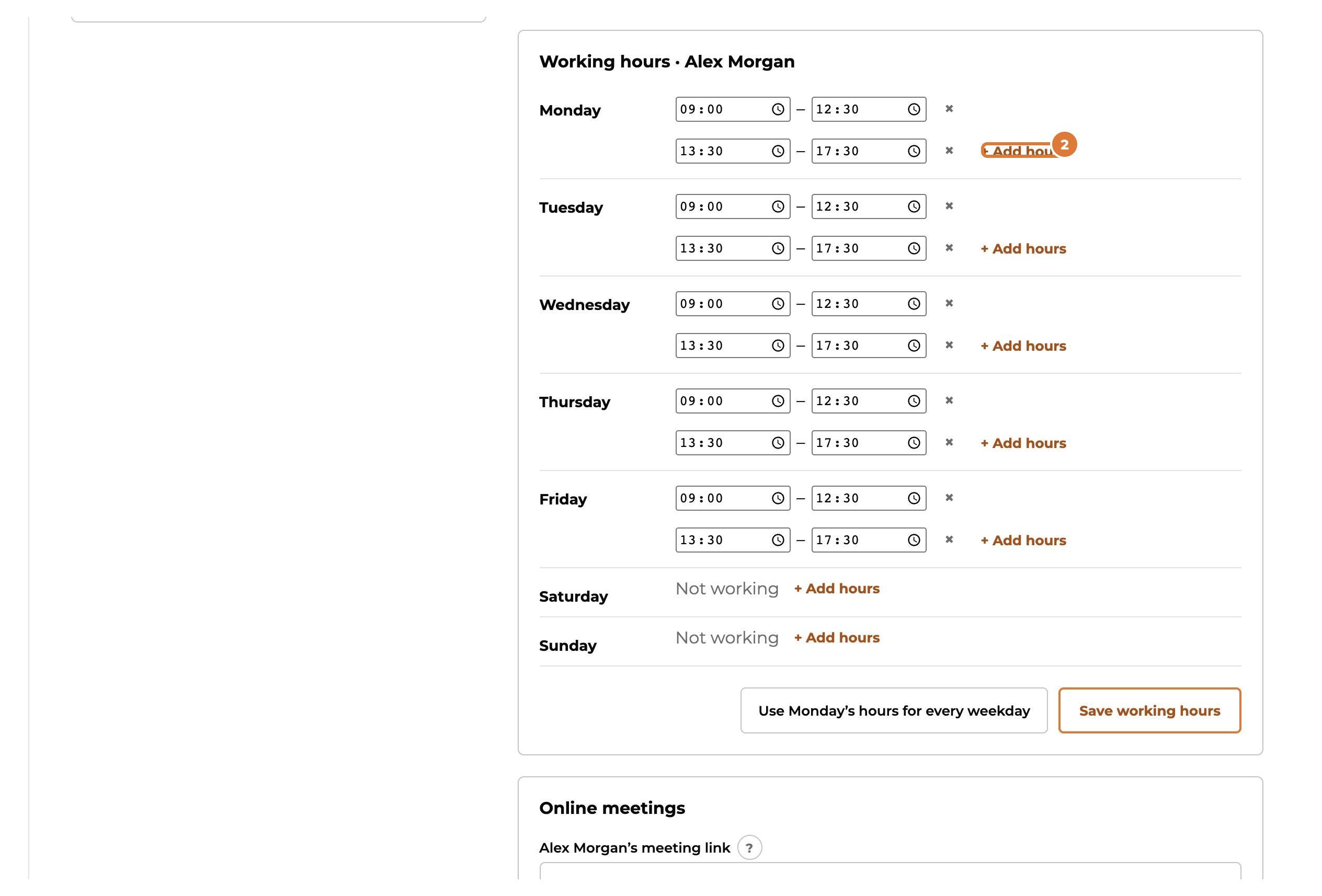
Per day, fill in from what time until what time you work. “+ Add hours” adds a second block, for example after a lunch break.
Step 3
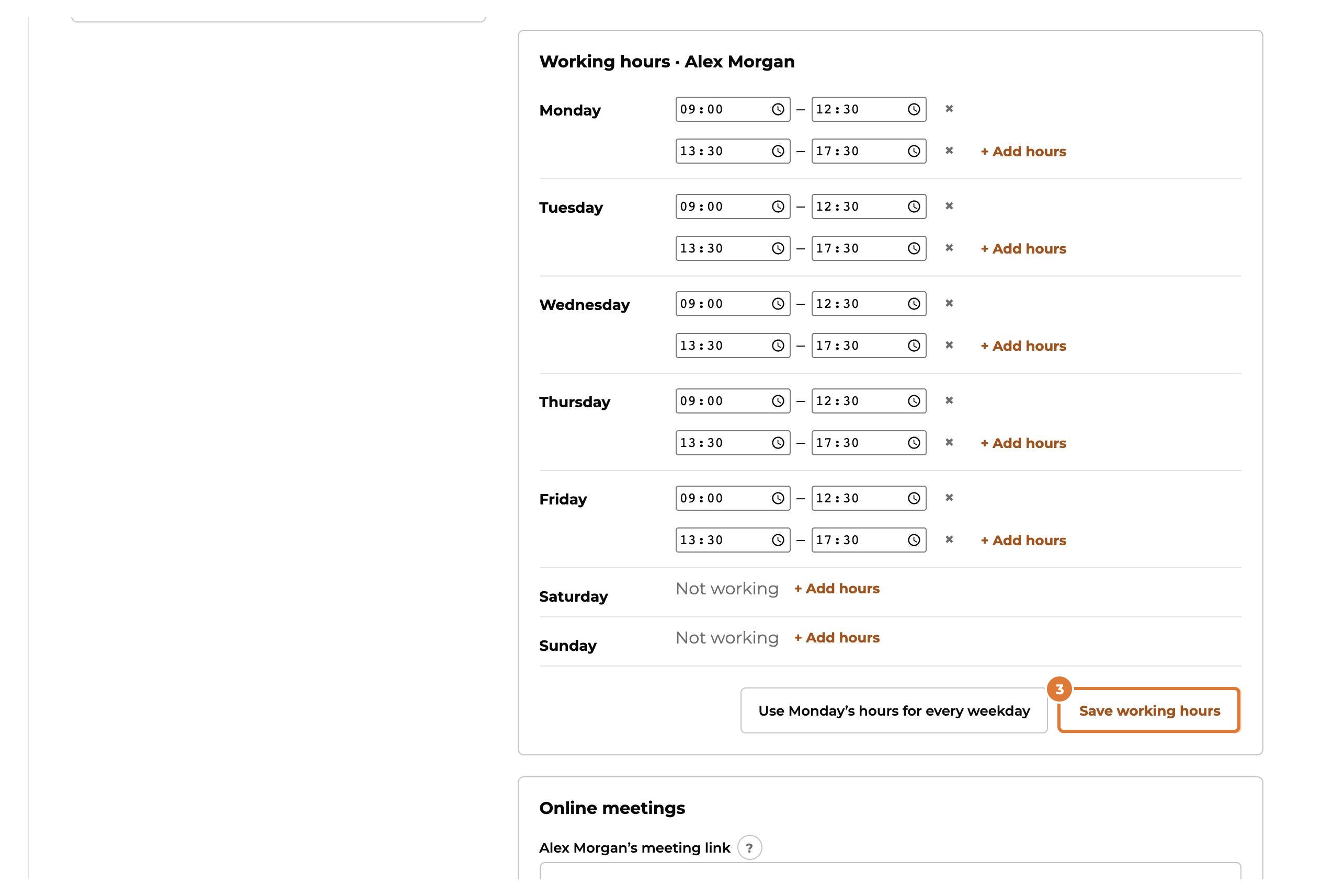
Choose “Save working hours”.
Step 4
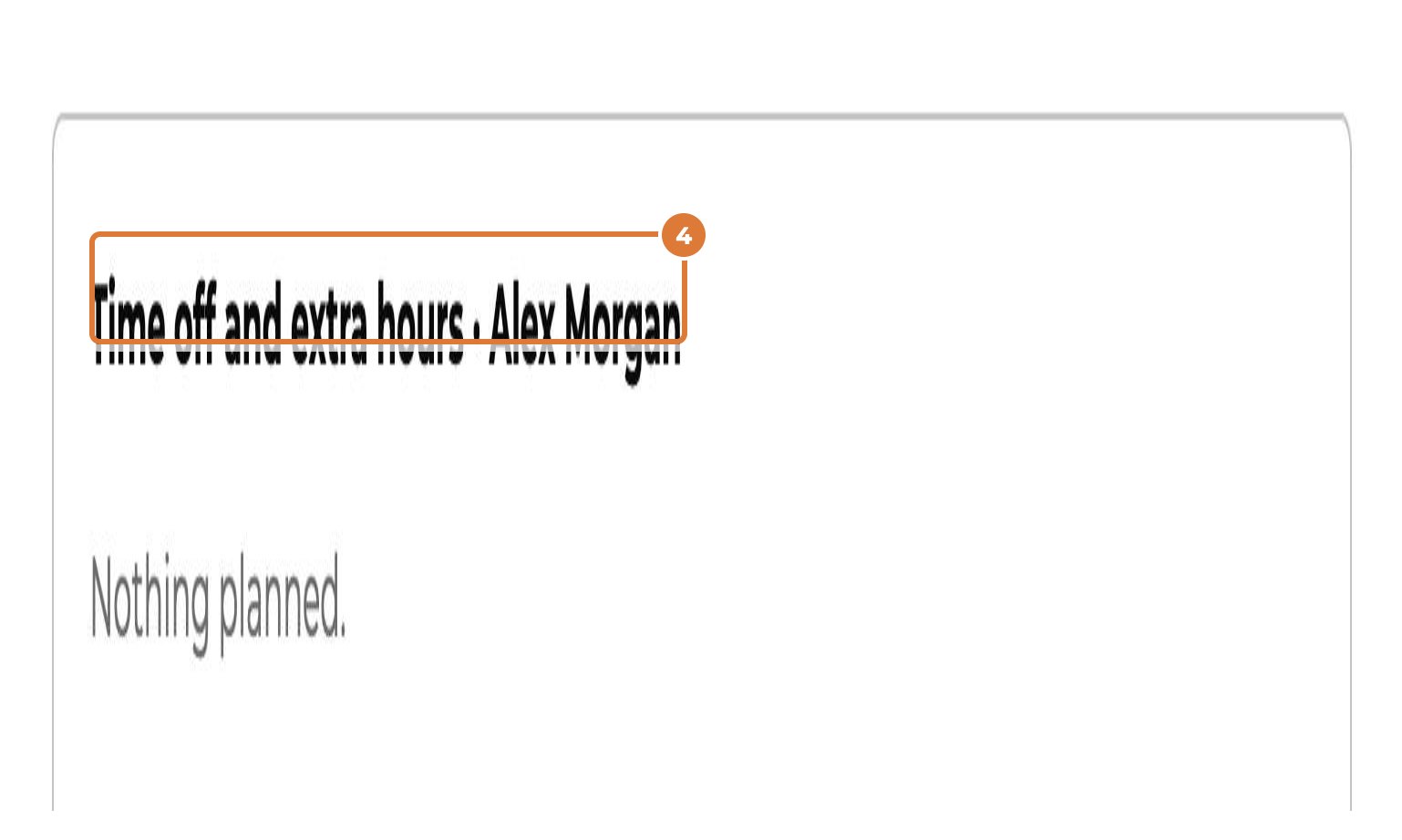
Days off, or working on a day you usually don’t? Under “Time off and extra hours”, fill in “From”, and “Until” for more than one day.
Step 5
Choose “Time off” or “Extra hours” under “Type”. Leave the times empty for whole days.
Step 6
Choose “Add”. Clients can’t book in your time off anymore. Appointments that were already planned then are shown, so you can move them.
Tip: Days the whole business is closed, such as public holidays, are set by your manager (“Closed days”).