
Step 1
First make sure at least one service can be booked online and your team has working hours (see “Set up services and working hours”).
Step 2
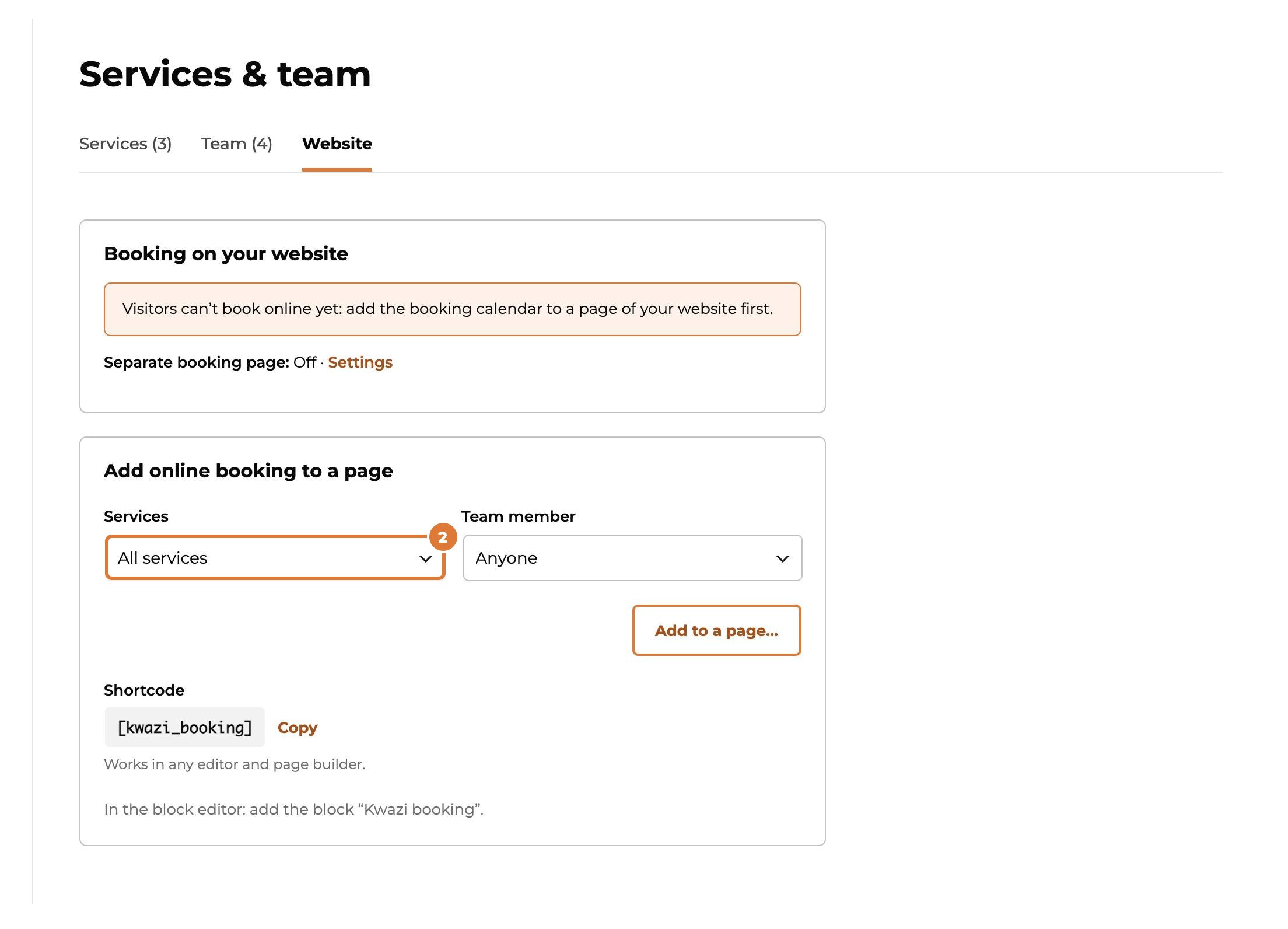
Go to Services & team, “Website” tab. Choose all services or one, and anyone or one team member.
Step 3
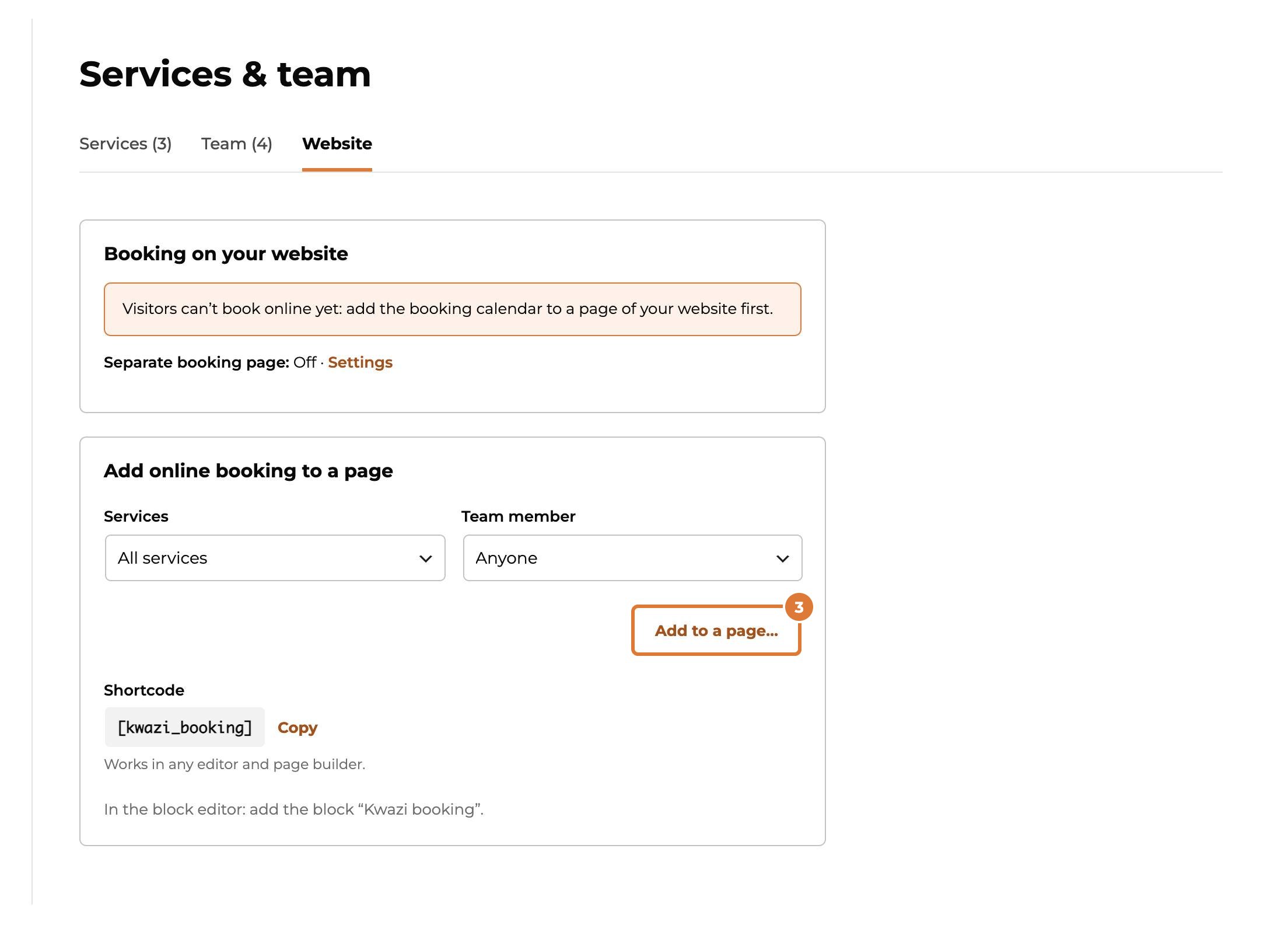
Choose “Add to a page…”, pick a new or existing page and confirm. A new page is a draft: publish it in WordPress.
Step 4
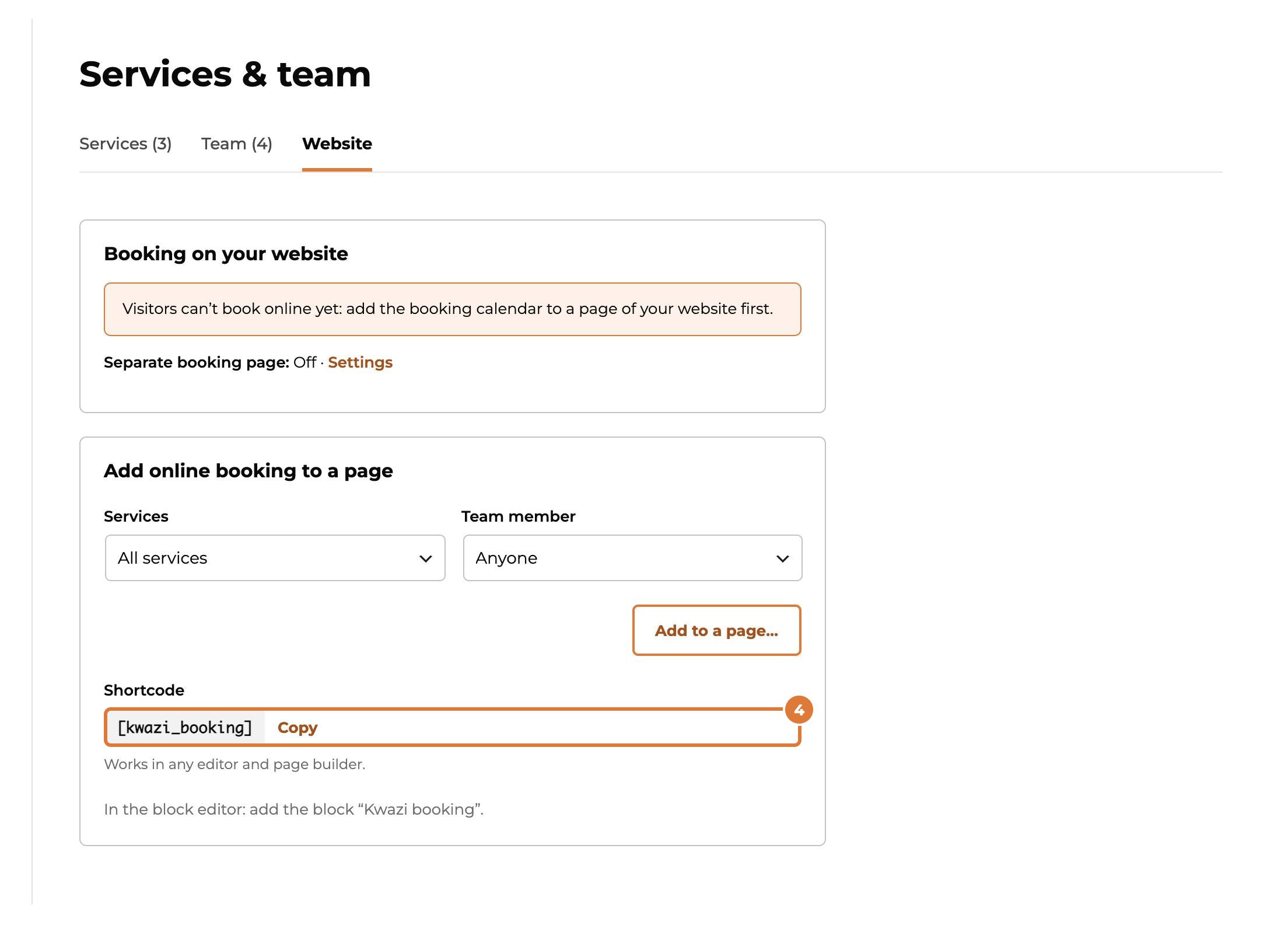
Or copy the shortcode, or add the block “Kwazi booking” in the block editor.
Step 5
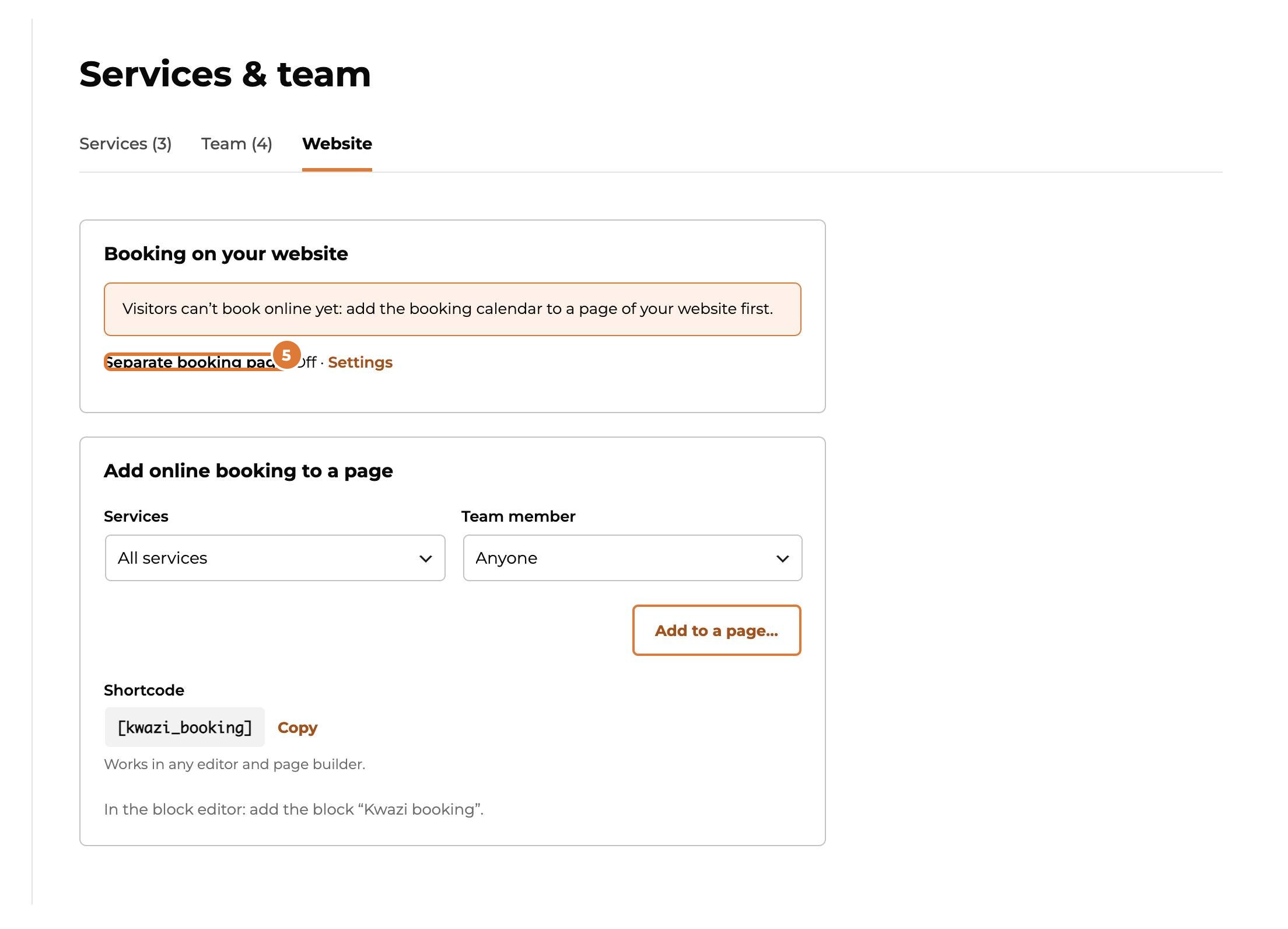
Prefer a page with only the booking calendar and your logo, for example to link from social media or an email? Next to “Separate booking page”, choose “Settings”…
Step 6
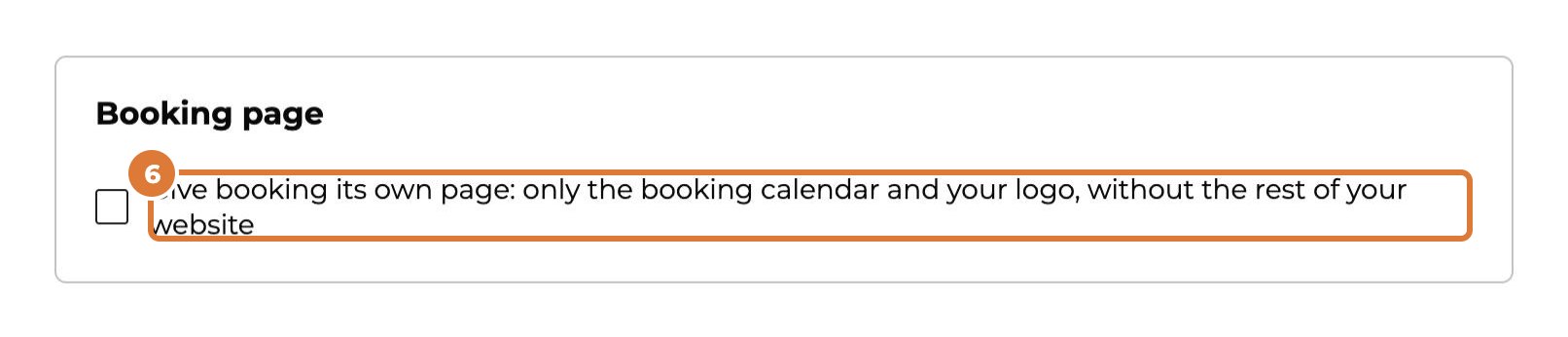
…and tick “Give booking its own page”. Then “Save settings”.
Step 7
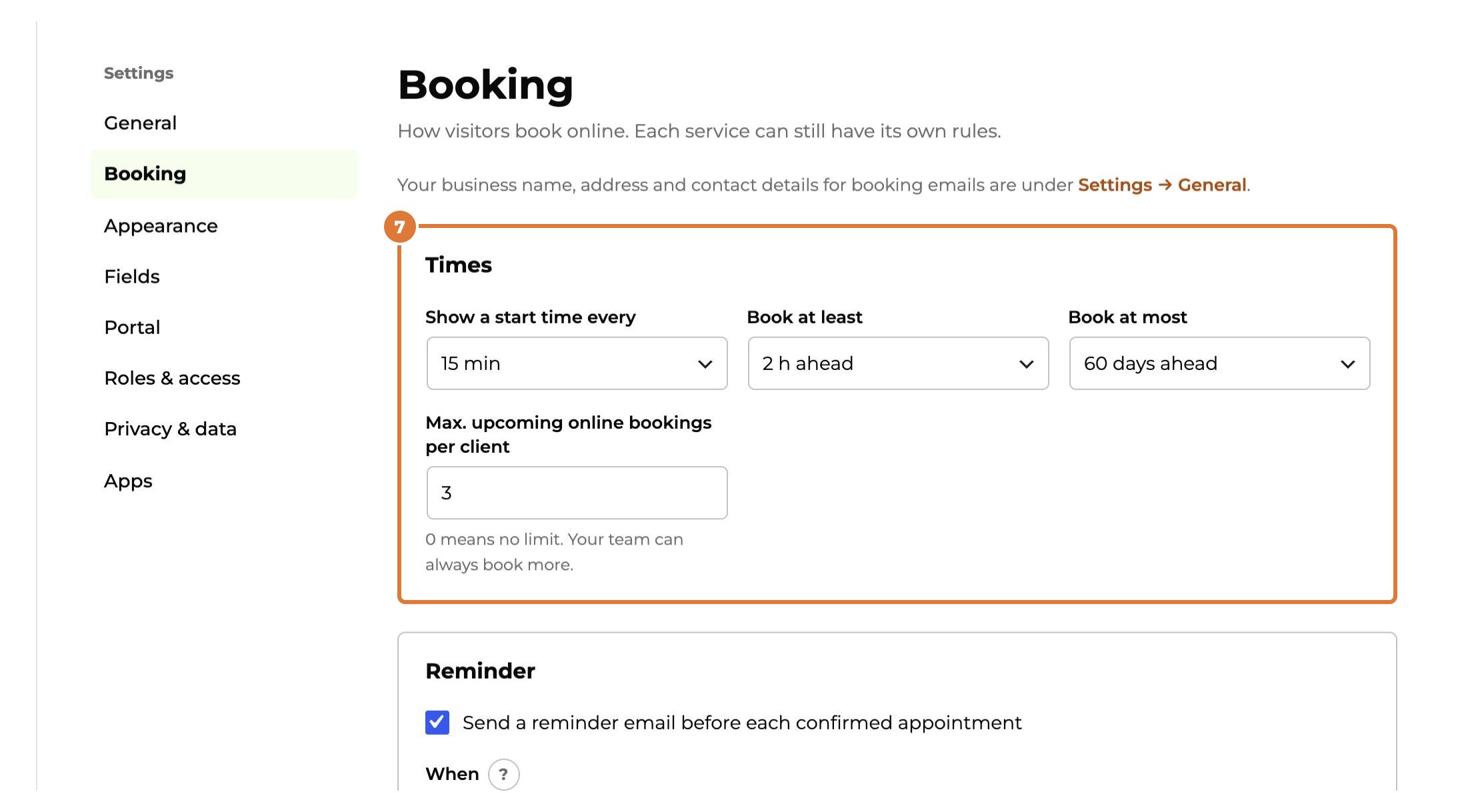
The rules are in Settings → Booking: how often a start time is shown, how soon and how far ahead people can book, reminders, cancelling and moving, and your terms.
Tip: Test it yourself: book an appointment on your website in a private window. You get the same emails as a client.