
Step 1
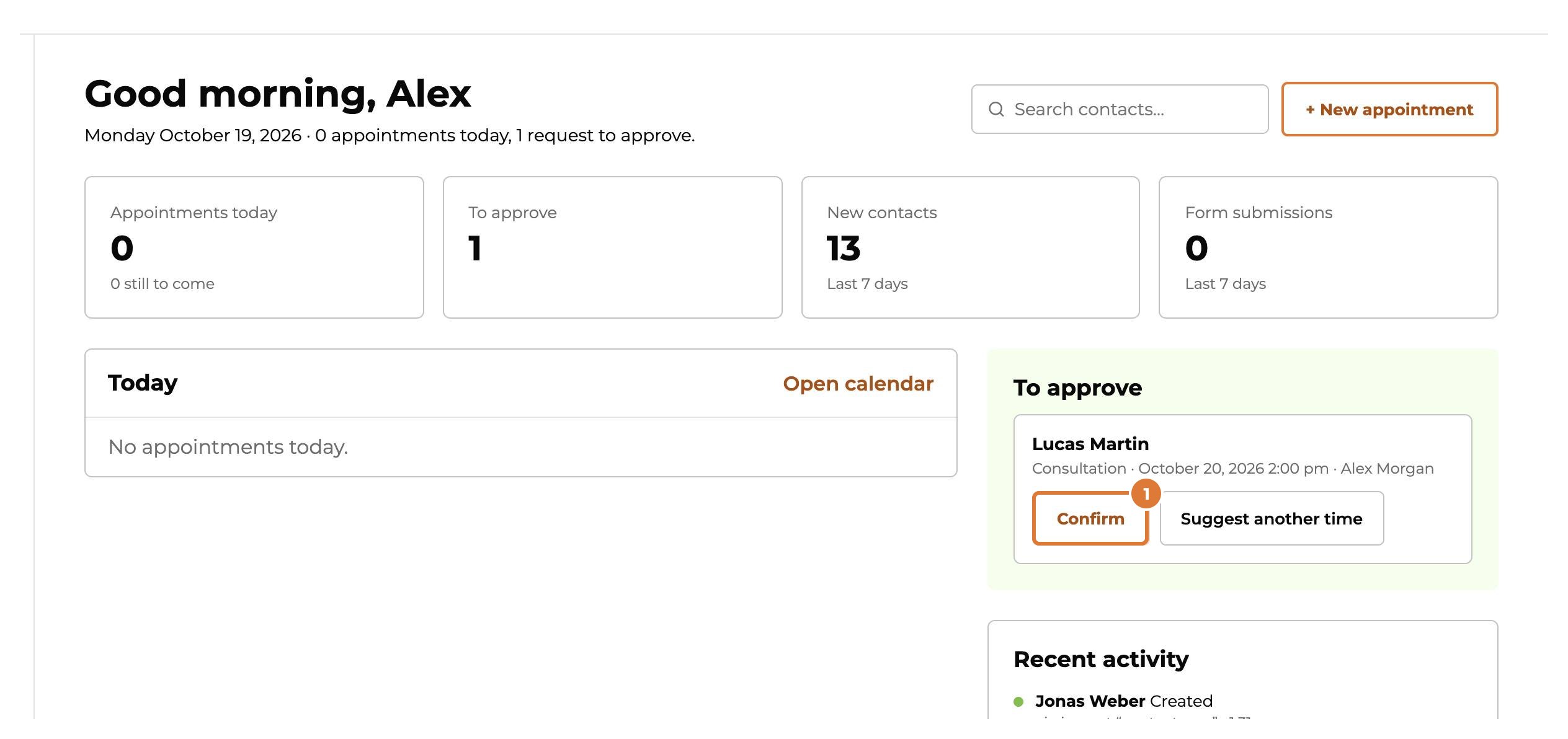
On the overview, requests that wait for approval are under “To approve”. Choose “Confirm”: the client gets an email.
Step 2
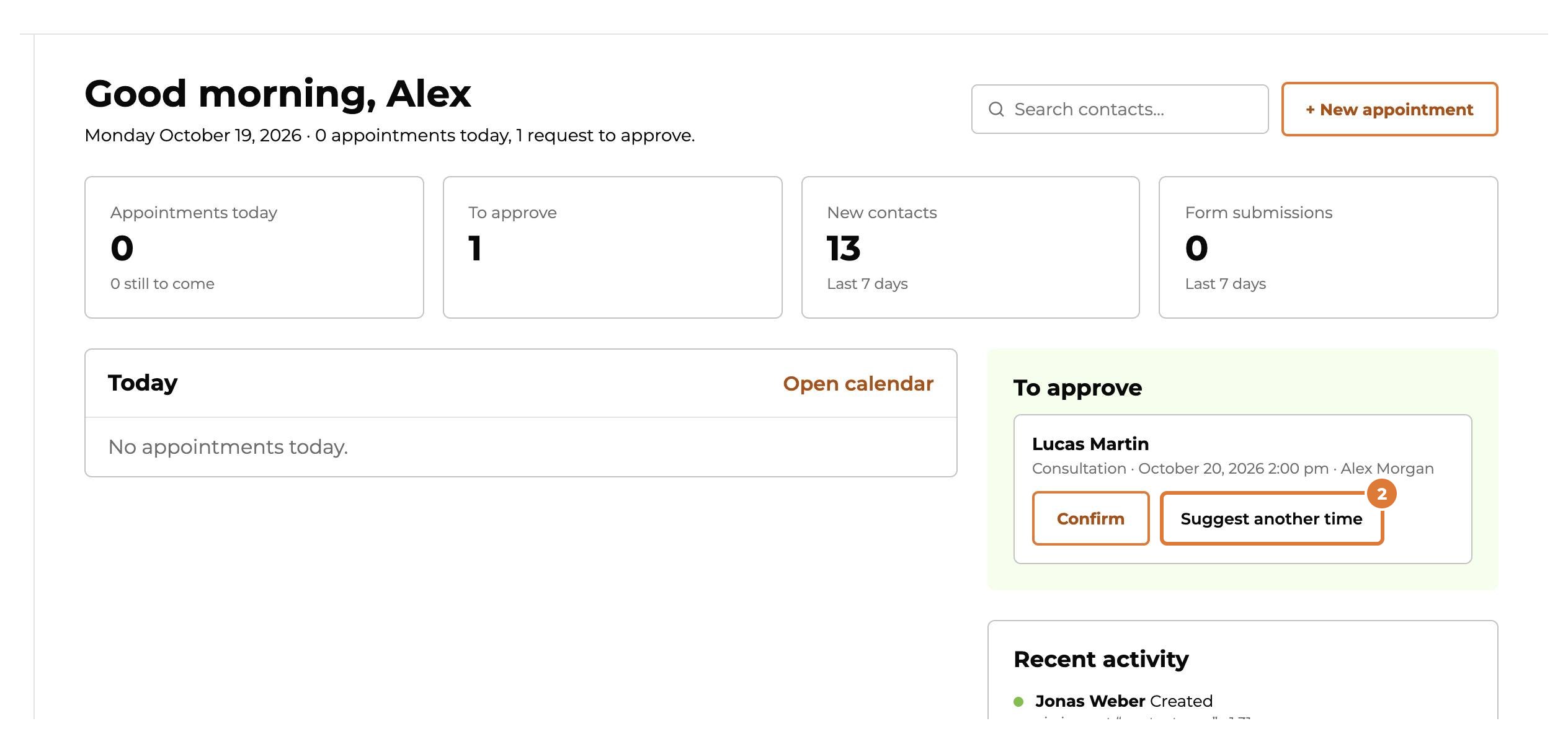
Want to look at it first, or does the time not suit? Choose “Suggest another time”: the appointment opens in the calendar.
Step 3
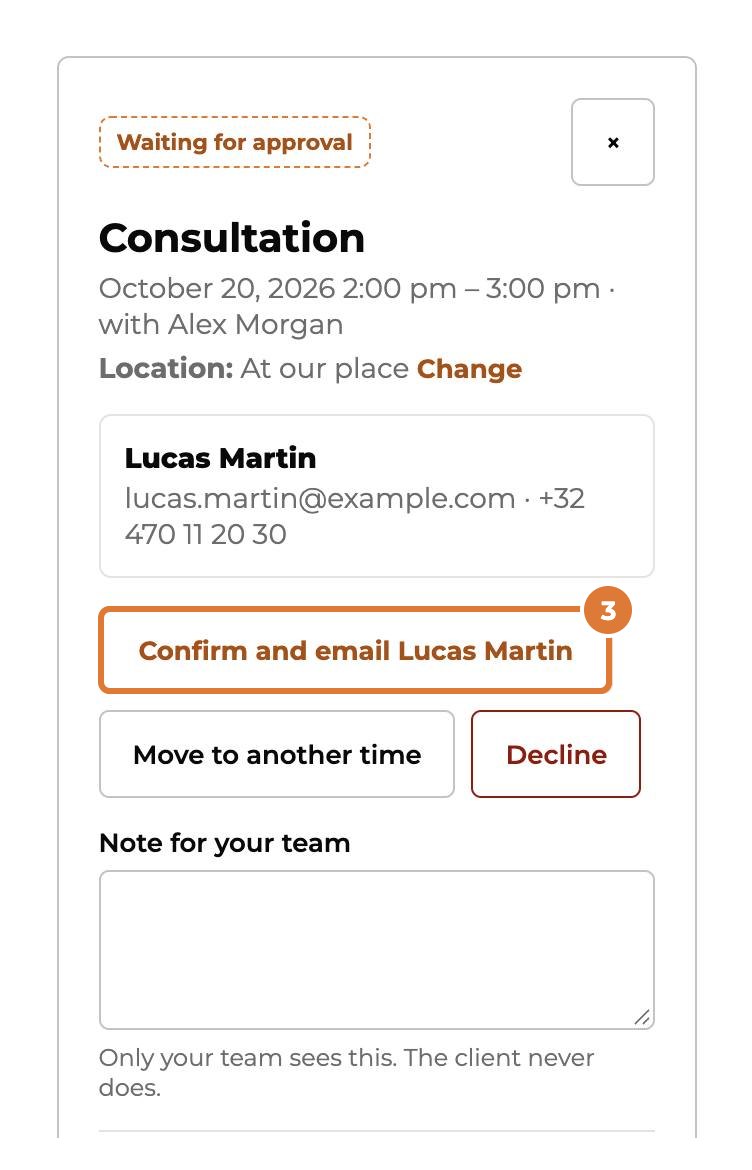
There you can still confirm it, and the client gets an email.
Step 4
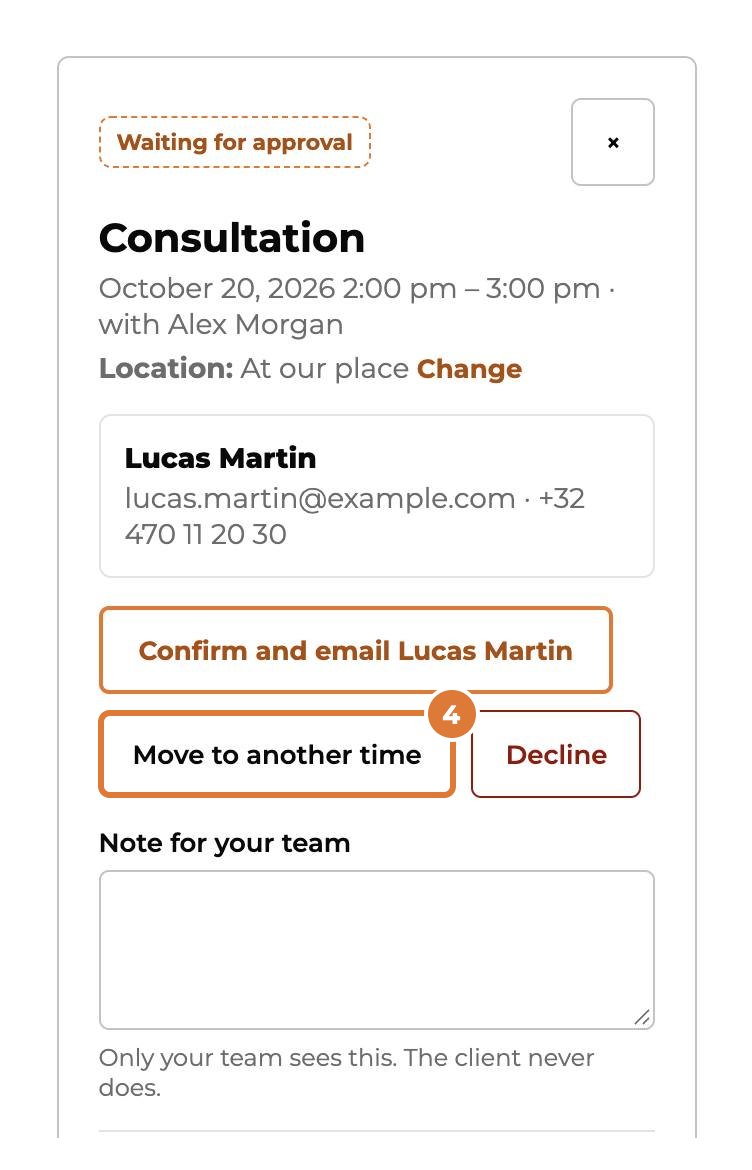
“Move to another time”: pick a new day and time, then “Save and email the client”.
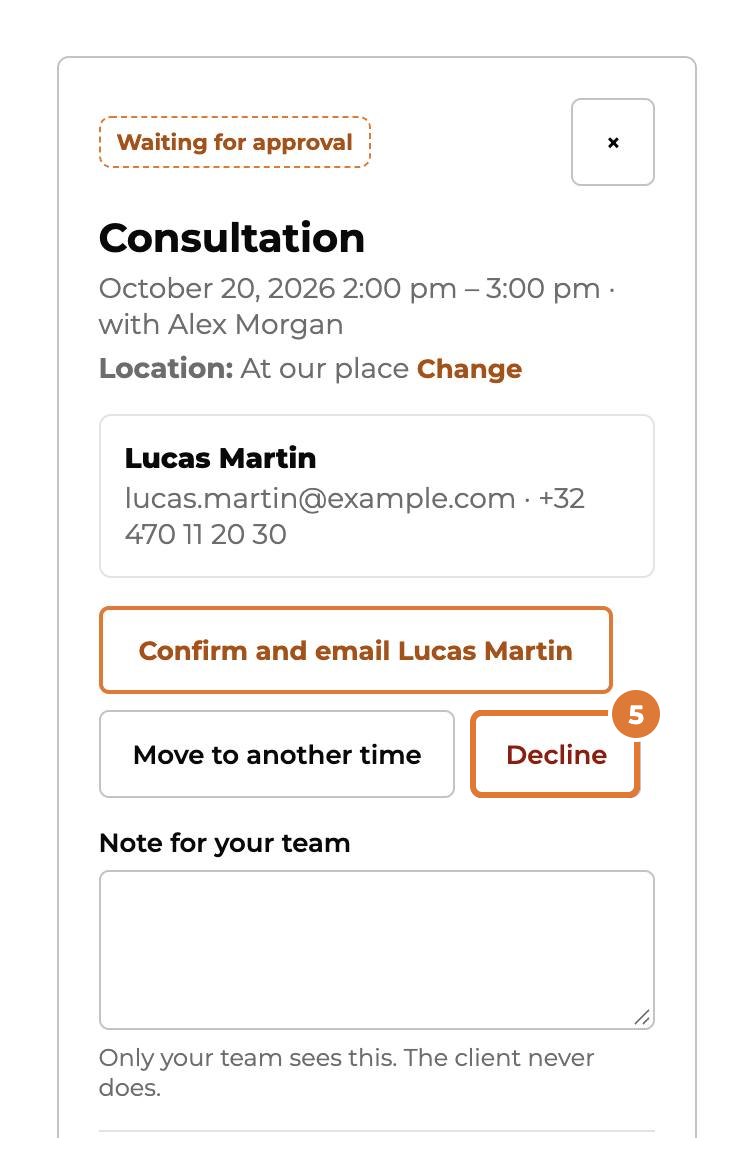
Step 5
Can’t take it at all? “Decline” frees the time and tells the client by email. Your reason stays with your team.
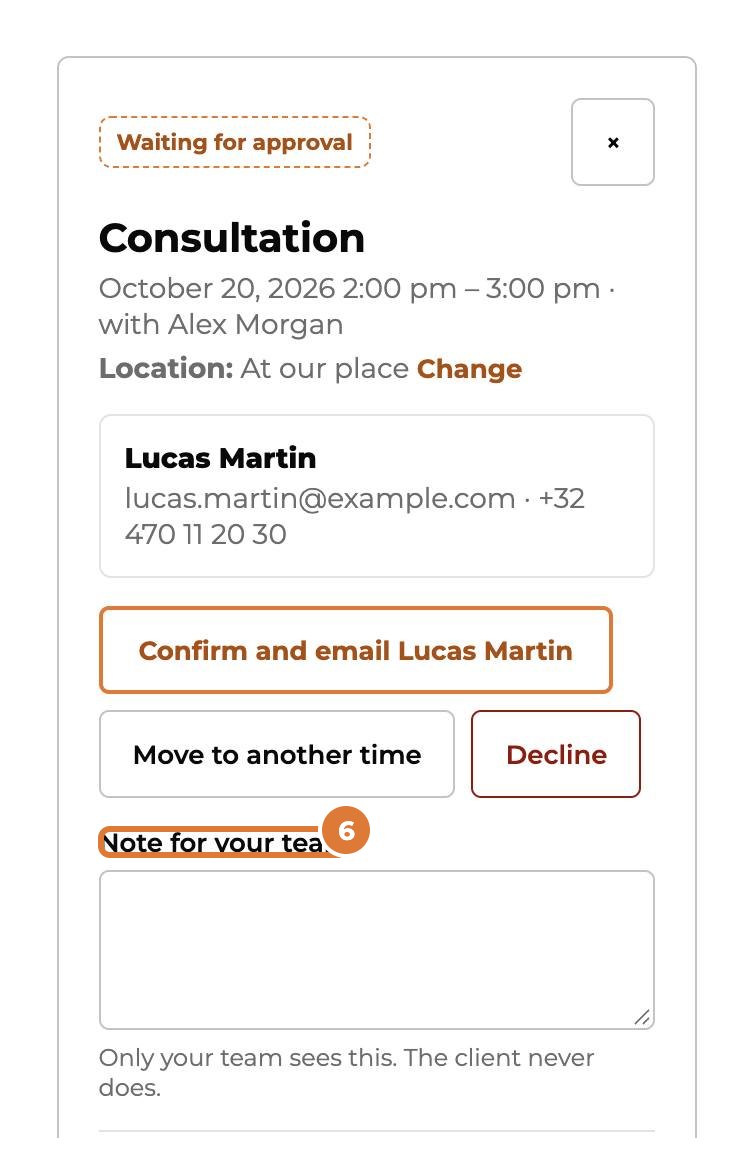
Step 6
Under “Note for your team” you write something only your team sees. The client never does.
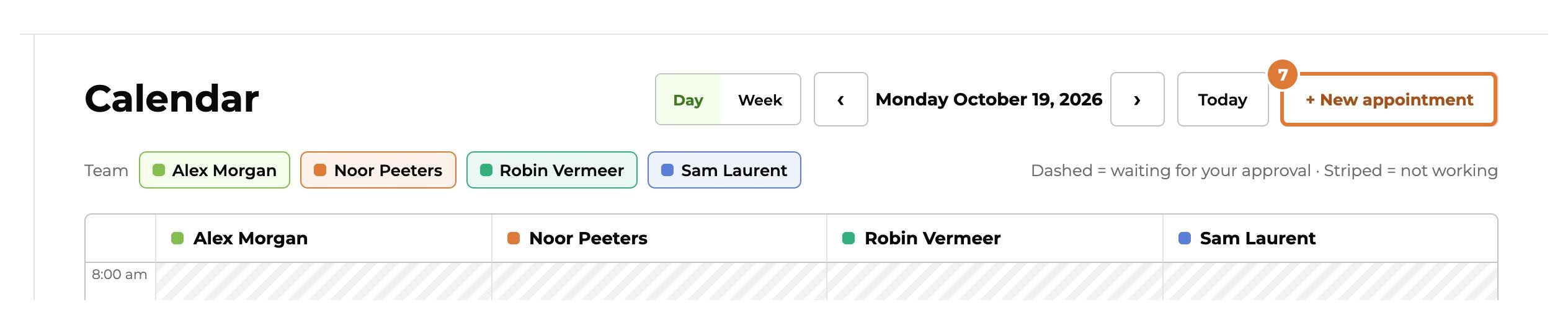
Step 7
In the calendar you switch between a day and a week. “+ New appointment” books one yourself, for example after a phone call.
Tip: Click an appointment in the calendar to open it. A confirmed one you can also cancel there: “Cancel appointment”.